
Why Exporting Editable XML Timelines Beats Baked MP4s
One-click MP4 generators lock you out of your own edit. Here is why shipping Premiere, DaVinci, and CapCut timelines saves hours on final polish.
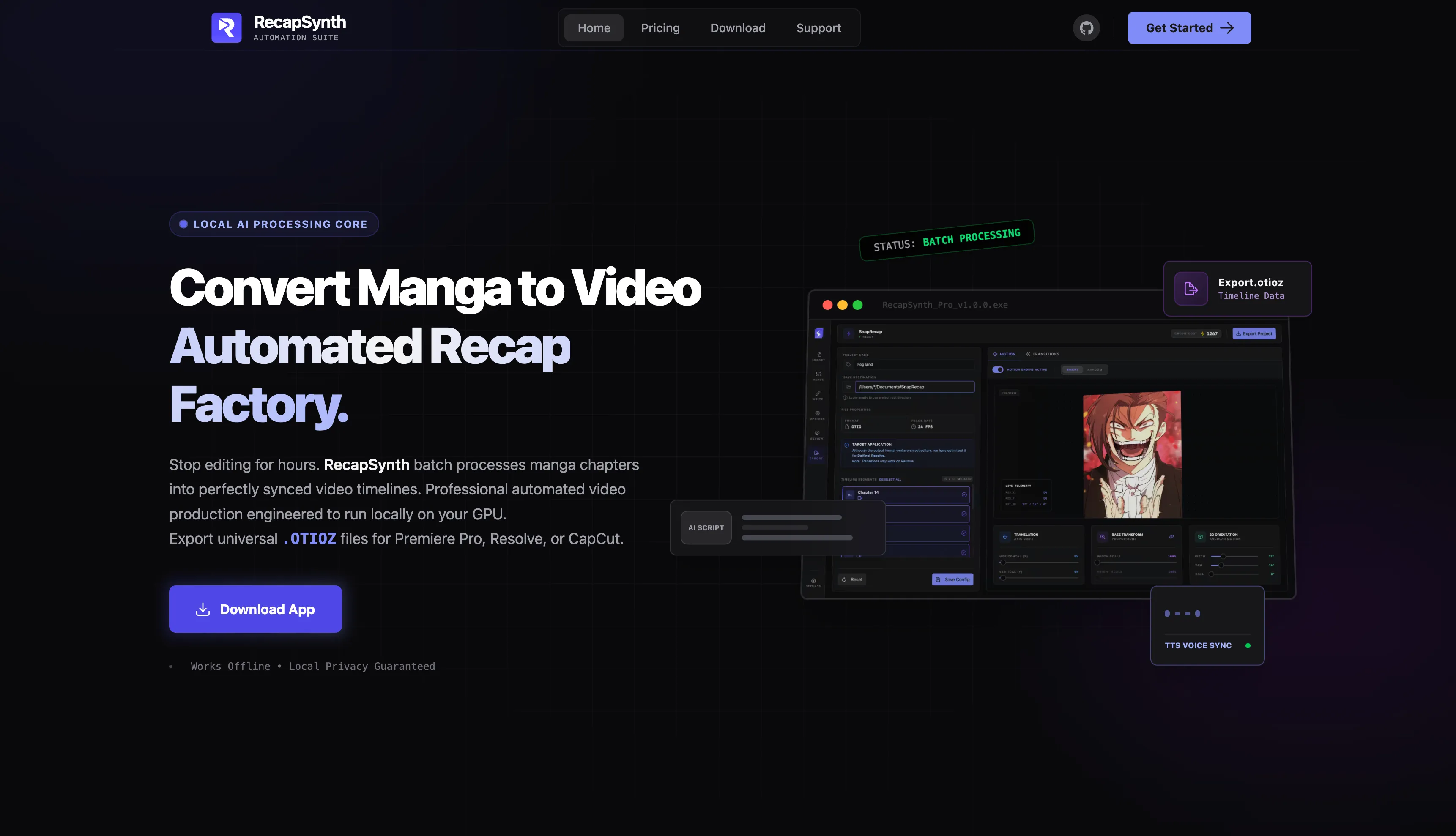
Most AI video tools end with a giant Render MP4 button. It sounds convenient—until you notice one cropped panel, want to swap a sound effect on beat 42, or need to drop in a custom title card before upload.
With a baked video file, fixing a 2-second timing mistake means re-rendering the entire 15-minute project or awkwardly slicing over flattened footage.
What Happens When You Export a Native Timeline
Instead of trapping your layers in a single video stream, RecapSynth exports clean .otioz and .xml project bundles with every asset neatly linked and organized:
Written by
RecapSynth Team
Sharing practical breakdowns on manhwa retention curves, local AI pipelines, and high-speed video production.
Keep Reading
View all →The Anatomy of a 68% Retention Manhwa Recap
What separates a channel that stalls at 2,000 views from one clearing 500,000? We broke down pacing, hook cadence, and panel timing across top recap videos.
How Adaptive Gutter Detection Stops Sliced Speech Bubbles
Long vertical webtoon strips are notoriously messy. Here is how RecapSynth combines pixel-variance scanning with bubble bounding boxes to cut cleanly every time.