
Script Assignment
Script Assignment is the final step of the Cast pipeline. It bridges your visual characters with your story text: a Vision-Language Model (VLM) analyzes each page image, determines which character speaks each dialogue bubble, and writes action descriptions for every panel.
These assignments populate the underlying script elements that drive the Write and Process stages.
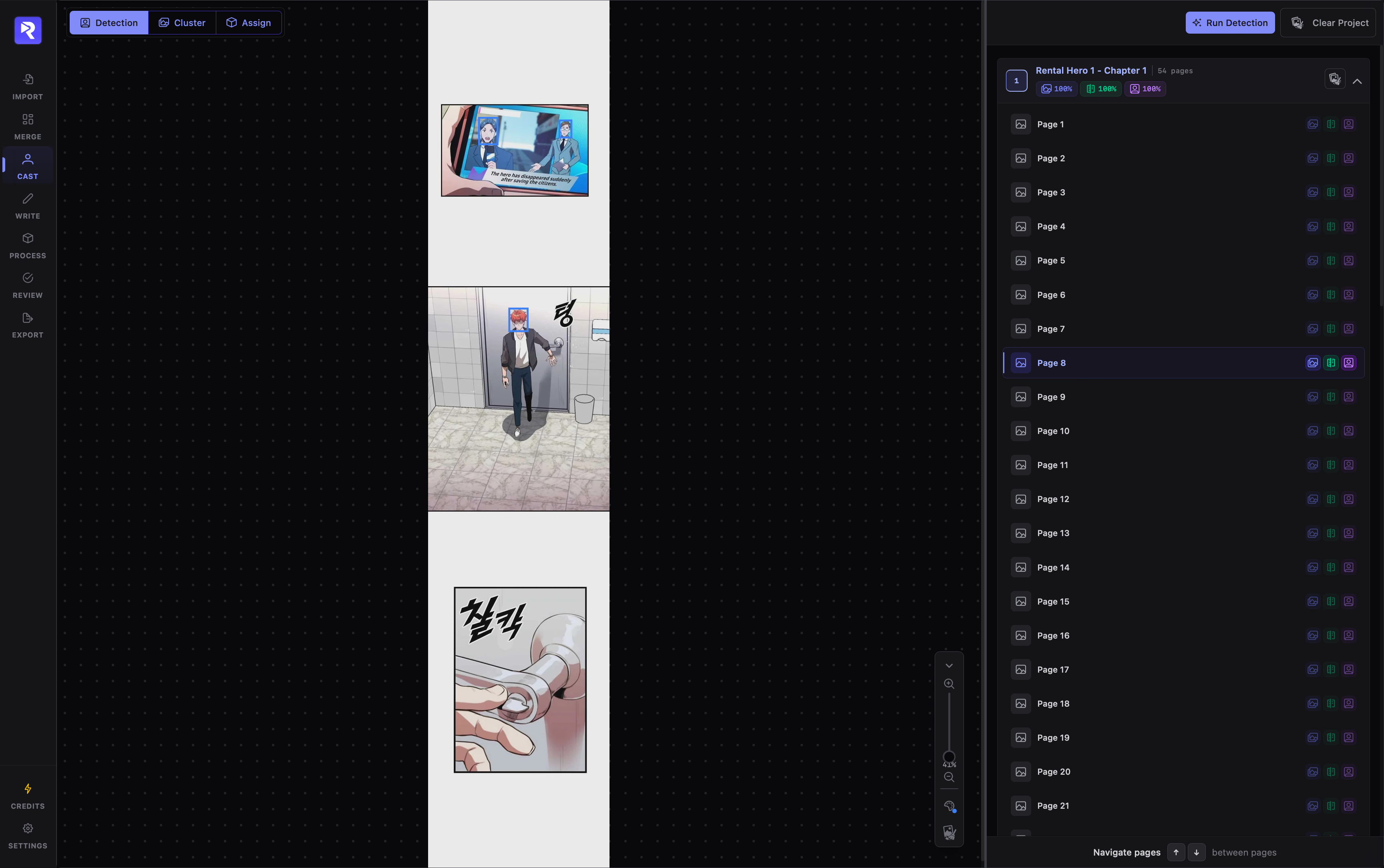
How Vision Assignment Works
Section titled “How Vision Assignment Works”Rather than guessing speakers from raw text alone, RecapSynth uses the character roster and head crops you finalized during Character Grouping and Name Assignment:
The engine finds all head crops on the page that belong to named character entities and builds a temporary roster (C1, C2, etc.) with names, aliases, and descriptions.
The VLM inspects the full-page image alongside OCR text bubbles and art panel bounds to trace speech bubble tails and observe character actions.
Each speech box is assigned to its character entity (or system fallback), and each panel receives a visual action description with a rolling narrative summary.
1. Select Target Chapters
Section titled “1. Select Target Chapters”The left side of the screen displays all chapters in your project as interactive folder cards.
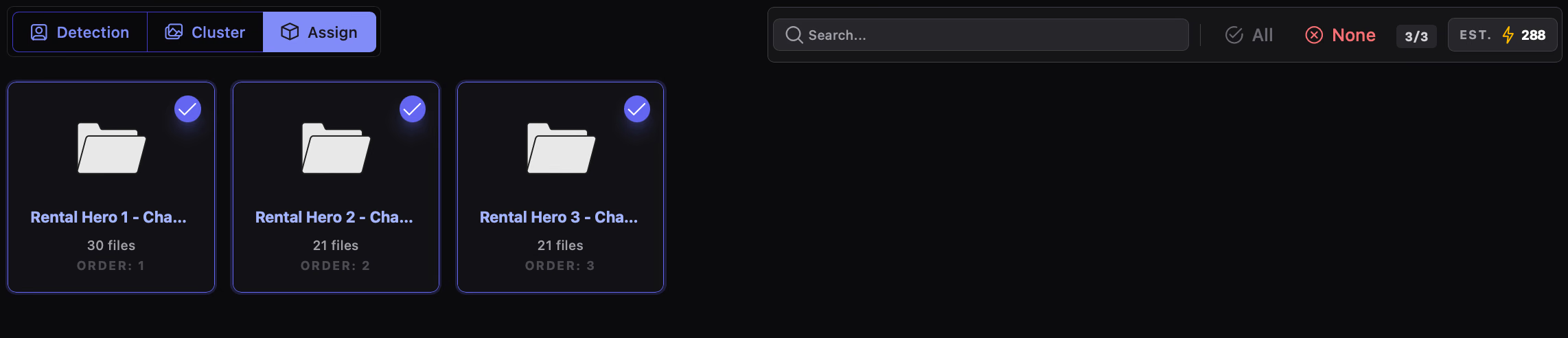
- Select chapters: Click any chapter card to toggle its selection checkmark.
- Bulk selection: Use All to select every chapter or None to clear your selection.
- Search filter: Type in the search box to filter chapters by title or order number.
2. Configure the Vision Model
Section titled “2. Configure the Vision Model”The right panel configures the Vision AI model and pipeline behavior before you launch the job.
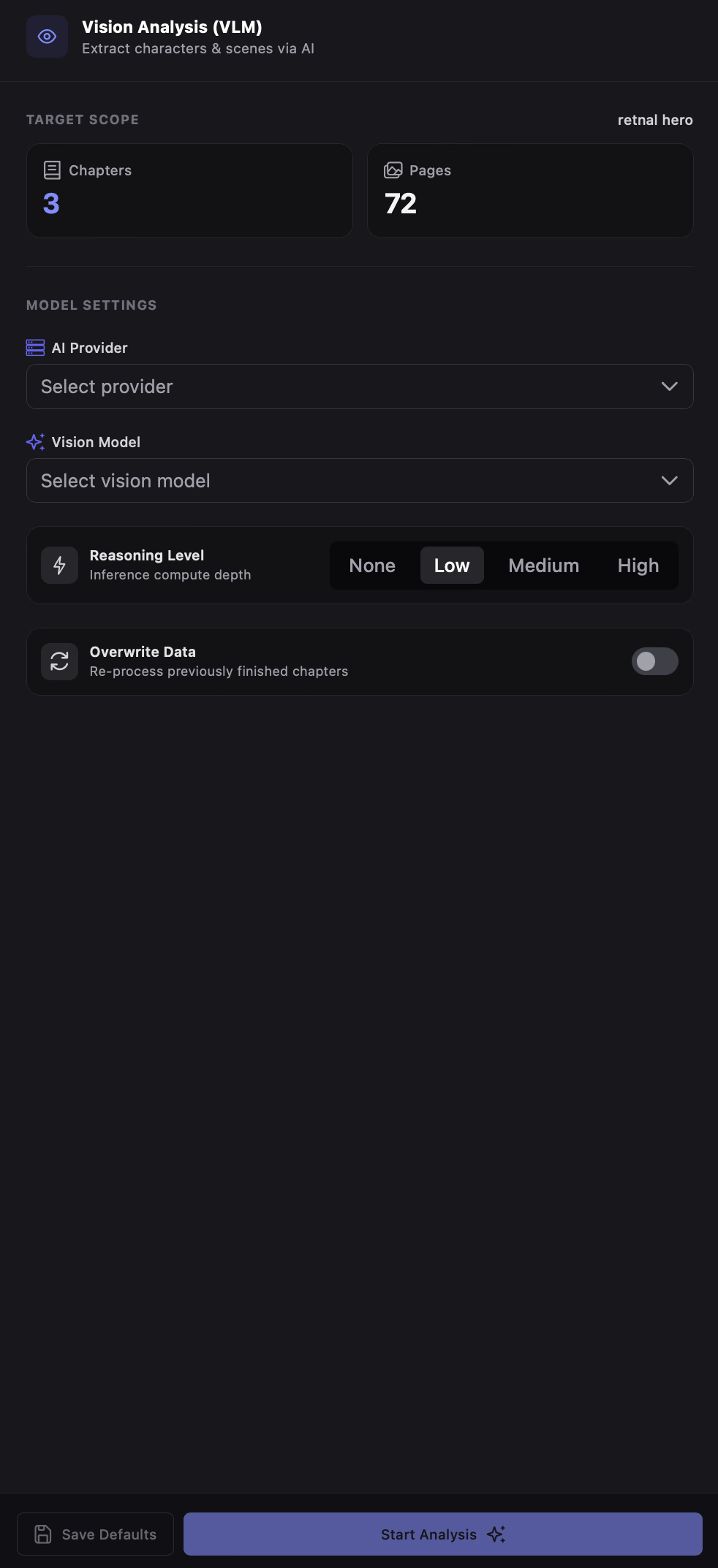
Select an AI provider with multimodal capabilities. The model list automatically filters to vision-capable models (e.g., GPT-4o, Claude 3.5 Sonnet, Gemini 1.5 Pro). Ensure the provider has a valid API key configured in Settings.
Choose inference compute depth: None, Low, Medium, or High. Higher levels improve accuracy for busy multi-character panels with overlapping speech tails, but take longer to process.
Overwrite Data & Incremental Processing
Section titled “Overwrite Data & Incremental Processing”By default, the Overwrite Data toggle is turned off:
- Incremental mode (Default - Off): The engine inspects every page in selected chapters and skips elements that already have speakers or panel text. Only unassigned speech boxes and empty art panels are processed. If an entire chapter is already complete, it is skipped entirely.
- Overwrite mode (On): Forces the AI to re-scan every page in the selected chapters from scratch, replacing all previously extracted speaker tags and panel descriptions.
Save Default Configuration
Section titled “Save Default Configuration”Click Save Defaults in the bottom footer to store your chosen provider, model, reasoning level, and overwrite preference as your project defaults for future analysis runs.
3. Run Analysis & Monitor Execution
Section titled “3. Run Analysis & Monitor Execution”1
Click Start Analysis
Located in the bottom-right corner of the inspector panel. If your plan requires an upgrade, an upgrade prompt appears instead.
2
Confirm in the Modal
A confirmation dialog summarizes the target chapters and displays an amber warning banner if Overwrite Data is enabled. Click Confirm & Start .
3
Track ProgressThe workspace switches into the active execution view, tracking chapter and page completion in real time.
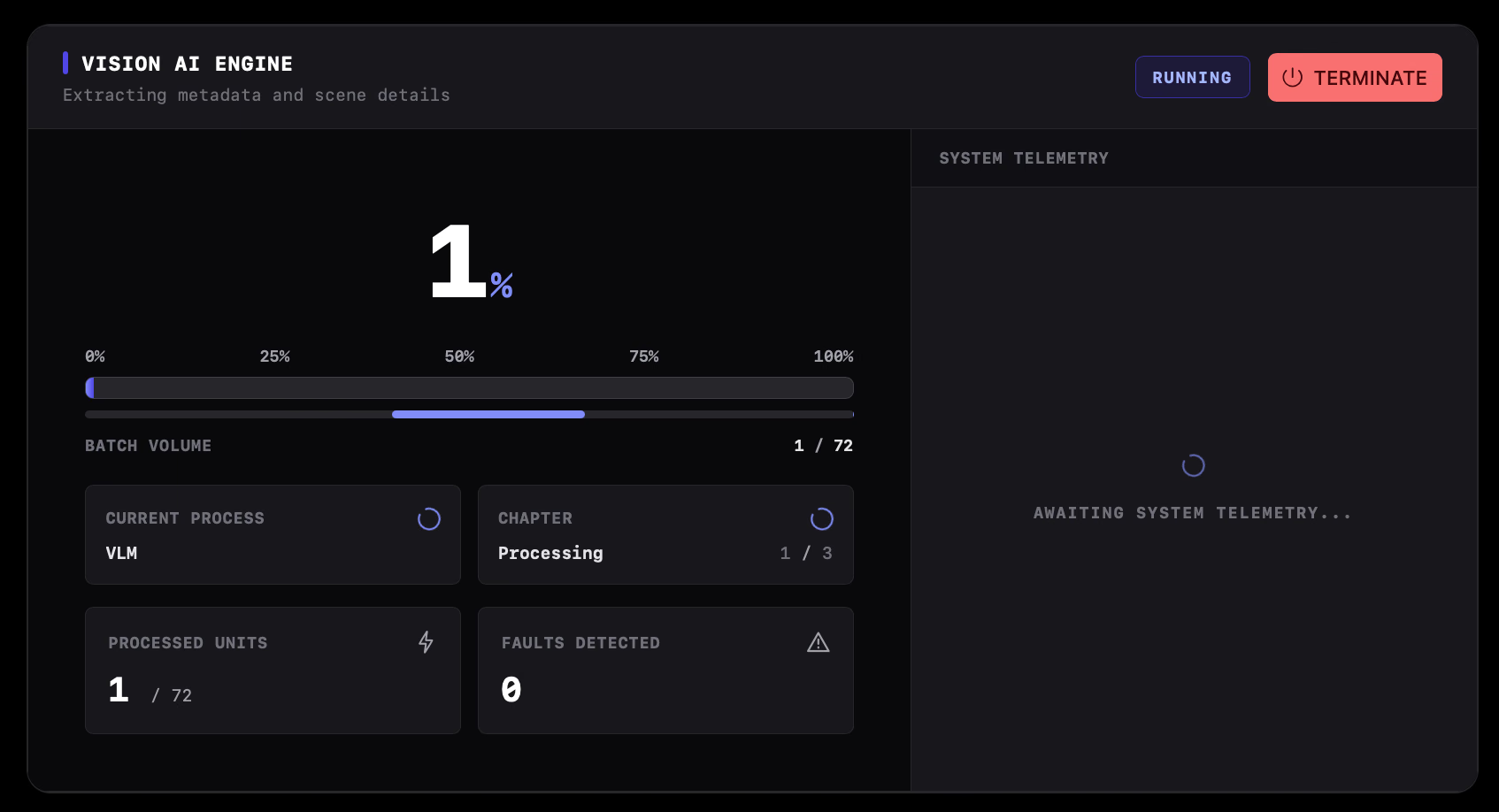
Cancellation & Fault Tolerance
Section titled “Cancellation & Fault Tolerance”- Cancelling a run: Click Cancel Job at any time. RecapSynth will finish writing the current page to the database and exit cleanly.
- Preserved work: Pages that completed before cancellation remain saved with their speaker assignments and panel text intact.
- Automatic retries: If an API rate limit (
429) or momentary connection error occurs, the pipeline pauses and retries up to three times with backoff before continuing to the next page.
Speaker Resolution Rules
Section titled “Speaker Resolution Rules”During execution, the VLM maps every dialogue box according to strict priority rules:
When a character is visible on the page (or identified by dialogue context), the speech box is linked to that character entity’s canonical ID.
System notifications, rectangular caption boxes, story exposition, and voiceovers are automatically routed to the project’s system Narrator entity.
If a speaker is off-screen, occluded, or unidentifiable, the dialogue is linked to the system Unknown Character entity rather than left blank.
Next Steps
Section titled “Next Steps”Once Vision Analysis finishes, your Cast setup is complete. You can proceed to the Write stage to review dialogue lines, adjust speaker assignments by hand, and generate your narration scripts.