
Create Project
In RecapSynth, a Project represents a single manhwa — acting as the top-level container for its imported chapters, OCR data, character entities, scripts, and exported timelines.
Workspace Layout
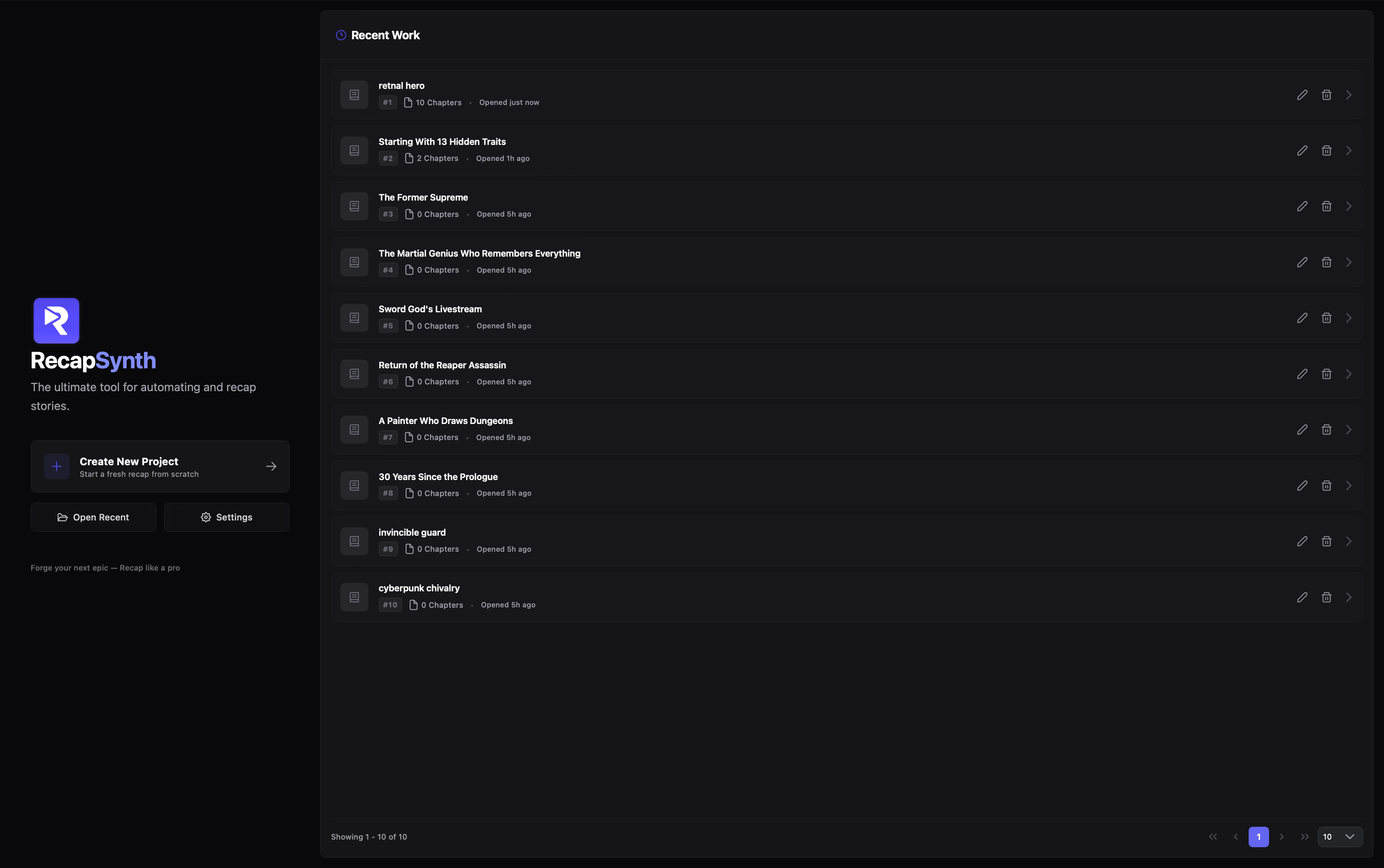
Section titled “Workspace Layout”The Project screen is split into two desktop panels:
Create New Project, Open Recent (launches the top project directly), and Settings.
Projects sorted by last opened, displaying chapter counts, relative timestamps, row actions, and pagination.
Creating a Project
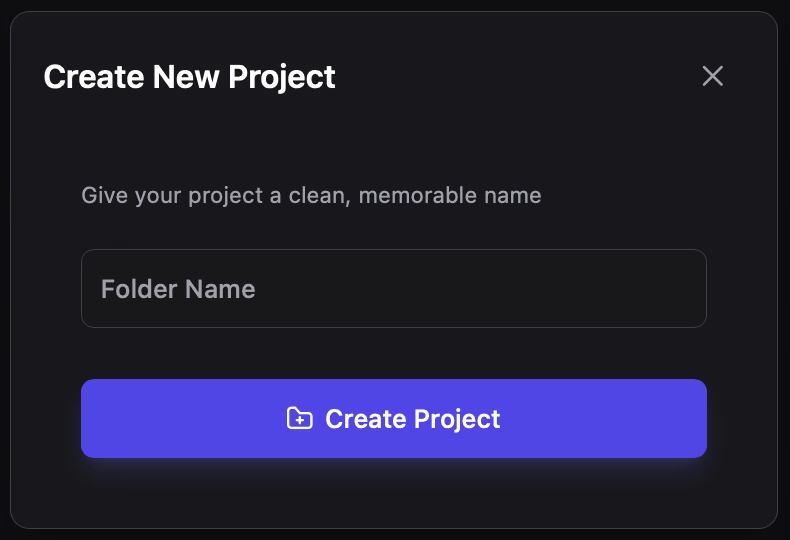
Section titled “Creating a Project”Click Create New Project, enter a name in Folder Name (typically the manhwa title, or a series + chapter range if splitting arcs), and submit.
- System characters seeded automatically: Each new project initializes with two built-in character entities (Unknown and Narrator) that cannot be deleted.
- Does not auto-open: Creation adds the project to Recent Work without entering the editor. Click the row (or Open Recent) to start importing chapters.
Managing Recent Work
Section titled “Managing Recent Work”Recent Work orders projects by recent_opened descending — opening any project bumps it to #1.
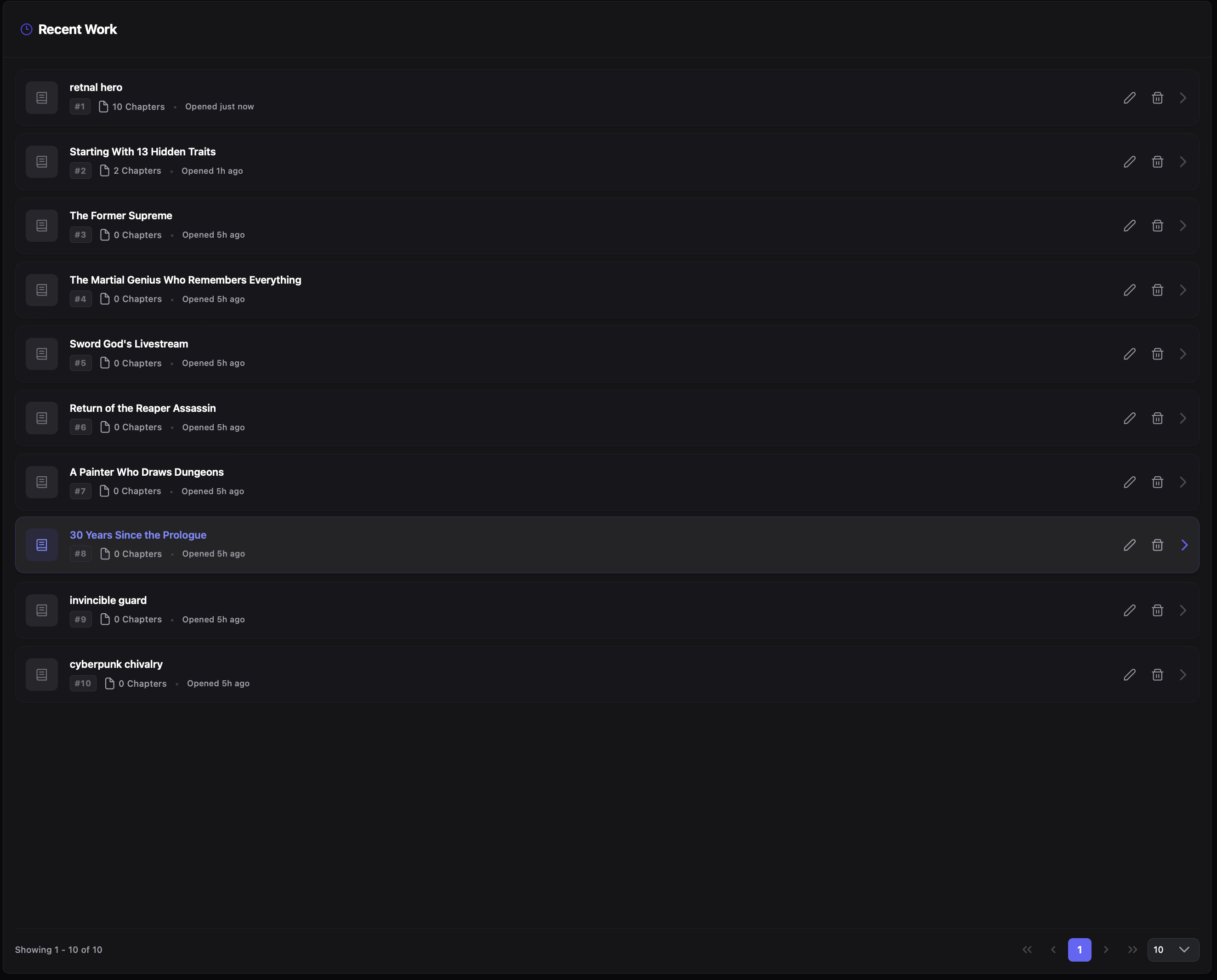
- Open: Click any project row (or click Open Recent in the sidebar to open
#1). - Rename: Click the pencil icon, edit the name, and press Enter or Save.
- Delete: Click the trash icon and confirm.
- Pagination: Supports
5,10(default),20, or50projects per page; your selection persists locally across sessions.
Entering the Editor
Section titled “Entering the Editor”Opening a project replaces the Project screen with the editor and its left navigation rail:
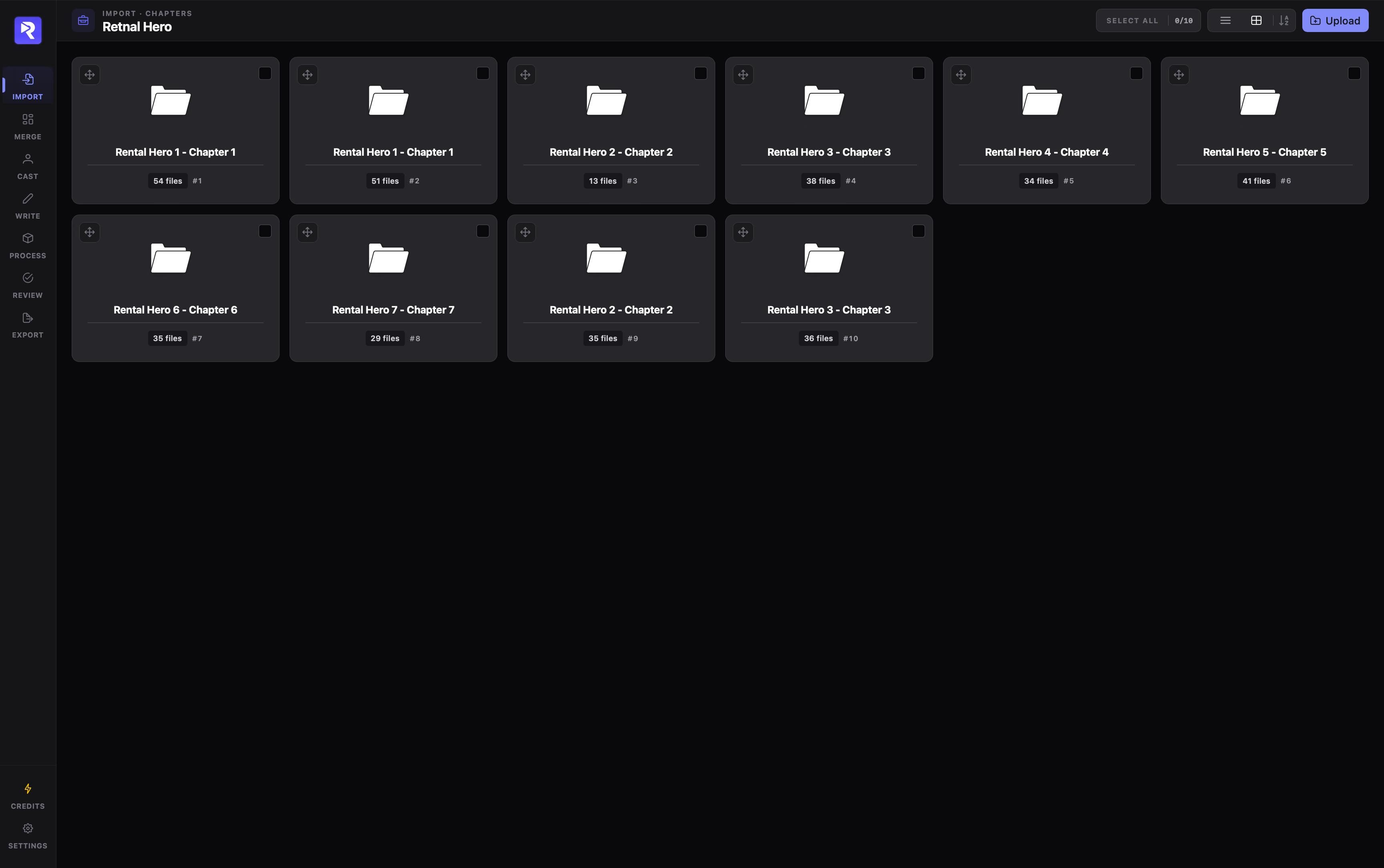
The rail steps follow your manhwa pipeline in order: Import → Merge → Cast → Write → Process → Review → Export. Click the RecapSynth logo at the top of the rail anytime to return to Project.