
Merging Pages
Merging Pages stitches consecutive short or panel-cut images vertically into continuous pages before you annotate and run OCR in Write. If your imported images are already well-sized (or only need slicing), skip straight to Splitting Long Pages or Write.
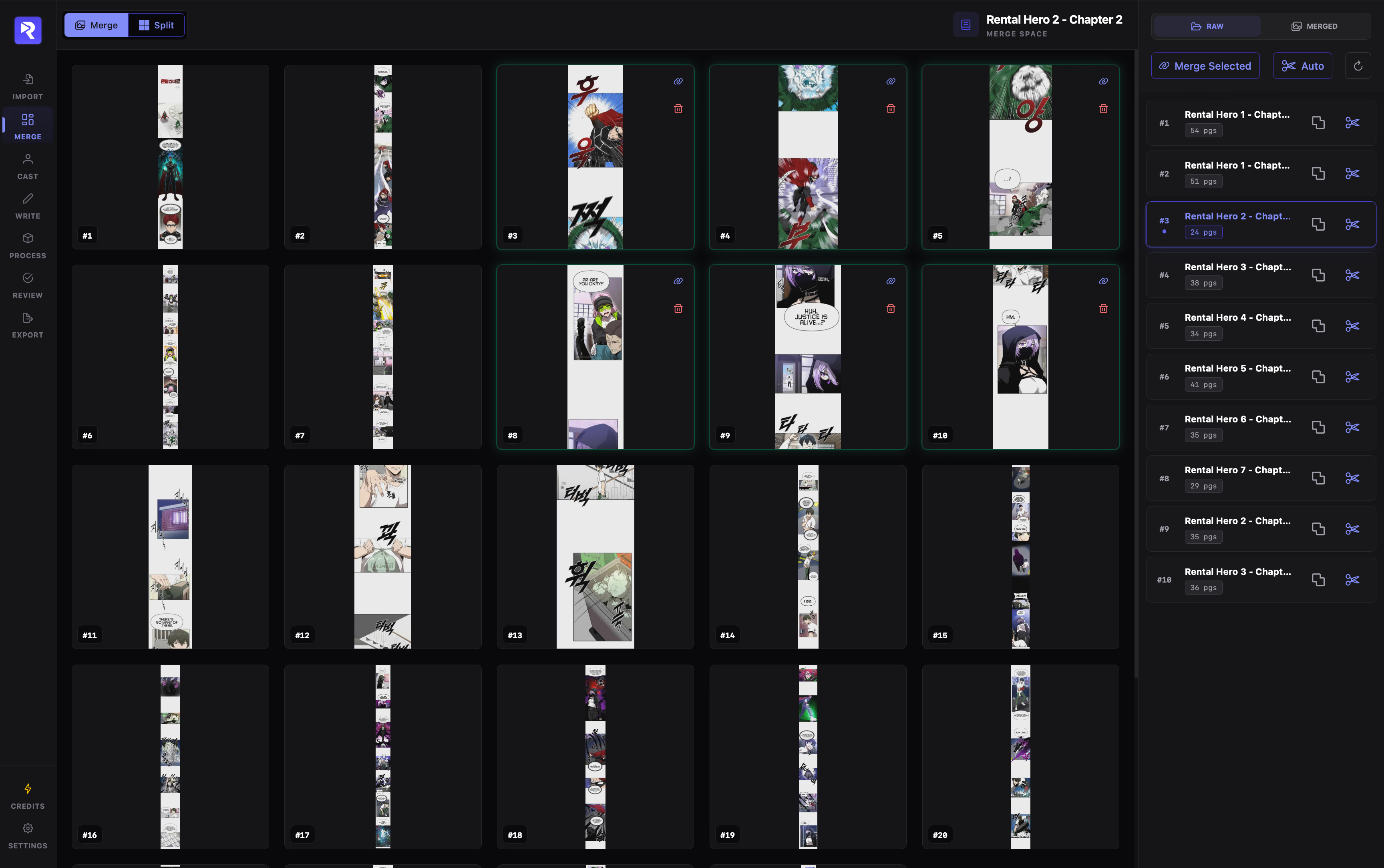
RAW vs. MERGED Chapters
Section titled “RAW vs. MERGED Chapters”The right sidebar splits your chapter list into two status views:
Click any chapter in the list to load its pages into Merge Space. Each chapter row also has two quick buttons on the right:
- Mark as merged / unmerged: Moves the chapter between RAW and MERGED for your own tracking (does not modify images).
- Auto stitch & slice chapter: Opens Auto-Stitch scoped to that single chapter.
Manual Merging
Section titled “Manual Merging”- 1
Select a chapter, then hover thumbnails in Merge Space and click the link icon on the pages you want to combine (press Esc to clear selection).
- 2
Click Merge Selected in the sidebar (or press Enter). The grid refreshes with the combined image(s).
How Consecutive Grouping Works
Section titled “How Consecutive Grouping Works”Only adjacent pages (by page order) merge together. If your selection has a gap, each consecutive run merges separately and isolated single pages remain untouched:
(You can also remove unwanted pages directly from Merge Space using the thumbnail trash icon → Sure confirmation.)
Auto-Stitch (Ratio-Based Merge & Slice)
Section titled “Auto-Stitch (Ratio-Based Merge & Slice)”For large chapters or entire projects, Auto-Stitch automatically merges short fragments and slices oversized strips toward a consistent Target Scale.
- Project-wide: Click Auto in the right sidebar to process all chapters.
- Single chapter: Click the slice icon on a specific chapter row.
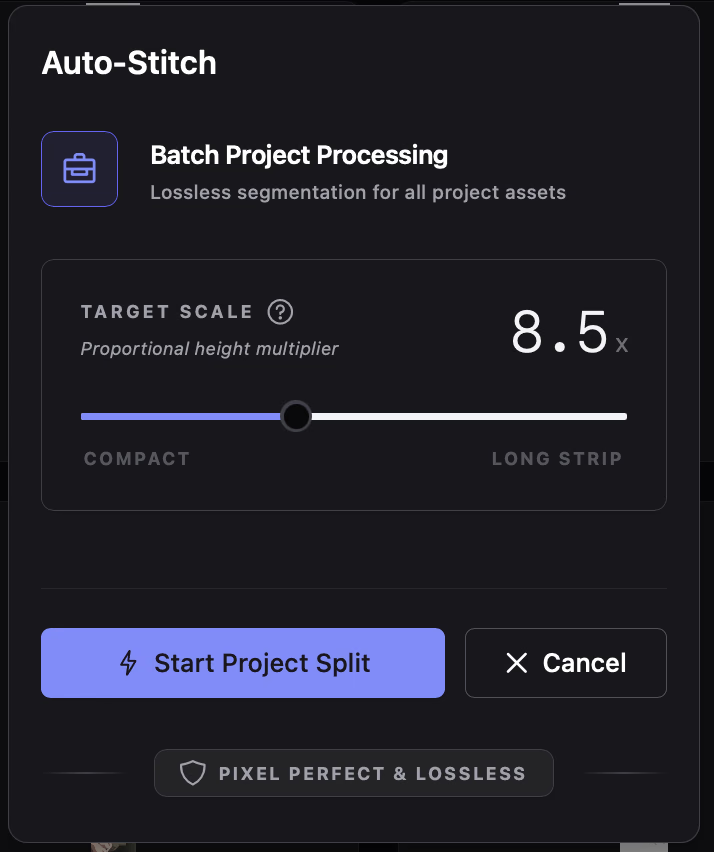
Understanding Target Scale (1.0x – 20.0x)
Section titled “Understanding Target Scale (1.0x – 20.0x)”Instead of relying on a fixed pixel height, Target Scale sets a height-to-width aspect ratio (height ÷ width):
Target Height = Image Width × Target Scale
Why a ratio is better than fixed pixels: Manhwa chapters often vary wildly in horizontal resolution (720px, 1200px, 2000px wide). A fixed pixel cap like 4000px produces tall, narrow strips on 720px scans (5.5x) and short, squat pages on 2000px scans (2.0x). Scaling by ratio guarantees uniform visual proportions across every chapter regardless of scan resolution.
Square to short pages (e.g., 800×800px to 800×1600px). Best for traditional manga pages or tightly segmented frames.
Standard webtoon chunks (e.g., 800×2400px to 800×4800px). Ideal balance for OCR accuracy and canvas annotation.
Very tall continuous strips (e.g., 800×8000px+). Keeps long scenes together with fewer page breaks.
Keyboard Shortcuts
Section titled “Keyboard Shortcuts”| Shortcut | Action |
|---|---|
| Enter | Merge selected pages |
| Shift + M | Toggle RAW ↔ MERGED view |
| Esc | Clear page selection |
| ← / → | Previous / Next chapter |