
Crop and Visual Settings
The Crop tab configures how RecapSynth extracts artwork panels from your comic pages and formats them into video-ready visual assets. You can enforce standard video aspect ratios, add directional blur backgrounds, render borders, and generate procedural drop shadows.
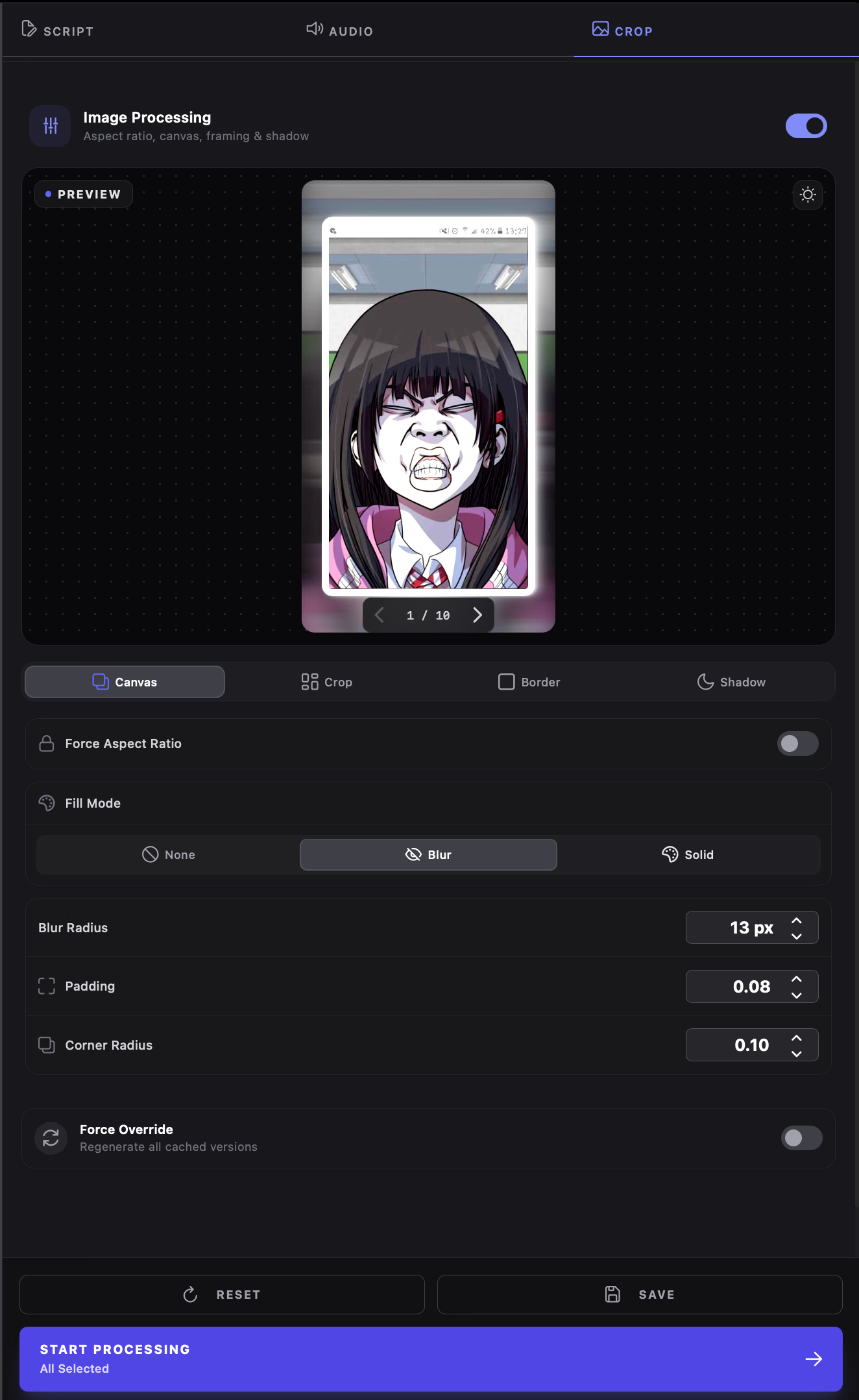
Interactive Live Preview Stage
Section titled “Interactive Live Preview Stage”The preview stage renders your settings in real time using sample manhwa panels:
- Carousel Navigation: Click the left and right arrows to test your visual settings across 10 sample images with different compositions.
- Invert Background (Sun/Moon icon): Switches the preview stage background between light and dark modes to check drop-shadow contrast against different video backdrops.
- Crop Box Overlay: When Crop Margin is active, a dashed primary-colored boundary box visualizes the inset cut in real time.
Inspector Tabs
Section titled “Inspector Tabs”The configuration inspector is divided into four focused categories:
1. Canvas Tab (Framing & Aspect Ratio)
Section titled “1. Canvas Tab (Framing & Aspect Ratio)”- Force Aspect Ratio: Enforces standard video aspect ratios (16:9 Widescreen, 9:16 Vertical Shorts/TikTok, 1:1 Square, 4:3 Standard, 3:2, 2:1, or 4:5).
- Fill Mode: When a panel’s natural dimensions do not fill the target aspect ratio, choose how to fill the remaining canvas area:
- None: Leaves the surrounding canvas transparent (PNG export).
- Blur: Uses an enlarged copy of the panel with a horizontal-only Gaussian blur (
feGaussianBlur), darkened with a 5% scrim for a clean cinematic backdrop. - Solid: Fills the background with a solid color selected via the color picker.
- Padding (
0.00–0.45): Expands the canvas margin around the inner artwork to prevent drop shadows and thick borders from clipping. - Corner Radius (
0.00–1.00): Rounds the outer corners of the overall canvas container.
2. Crop Tab (Trimming & Contrast)
Section titled “2. Crop Tab (Trimming & Contrast)”- Crop Margin (
0.00–0.45): Inset trim that pulls edges inward toward the panel center. Useful for removing black gutter borders, chapter watermarks, or scanner edges. - Contrast Boost (
0.00–1.00): Enhances contrast across the image to make line art and vibrant colors stand out against video backgrounds.
3. Border Tab (Strokes & Radii)
Section titled “3. Border Tab (Strokes & Radii)”- Stroke Width (
0–20 px): Adds an outer boundary frame around the inner image. For polygon boxes, the stroke accurately traces the contour of the shape. - Border Color: Custom color picker for the border frame.
- Image Radius (
0.00–1.00): Rounds the corners of the inner illustration itself, independent of the outer canvas frame.
4. Shadow Tab (Procedural Drop Shadow)
Section titled “4. Shadow Tab (Procedural Drop Shadow)”Adds a multi-layered procedural drop shadow behind the panel for visual depth:
- Shadow Opacity (
0.00–1.00): Controls shadow intensity. - Light Angle (
0°–360°): Sets the directional angle of the virtual light source (default:45°top-left). - Distance (
0–100 px): Distance the shadow extends away from the panel. - Shadow Color: Select custom shadow tones (defaults to deep black
#000000).
Visual Presets by Target Platform
Section titled “Visual Presets by Target Platform”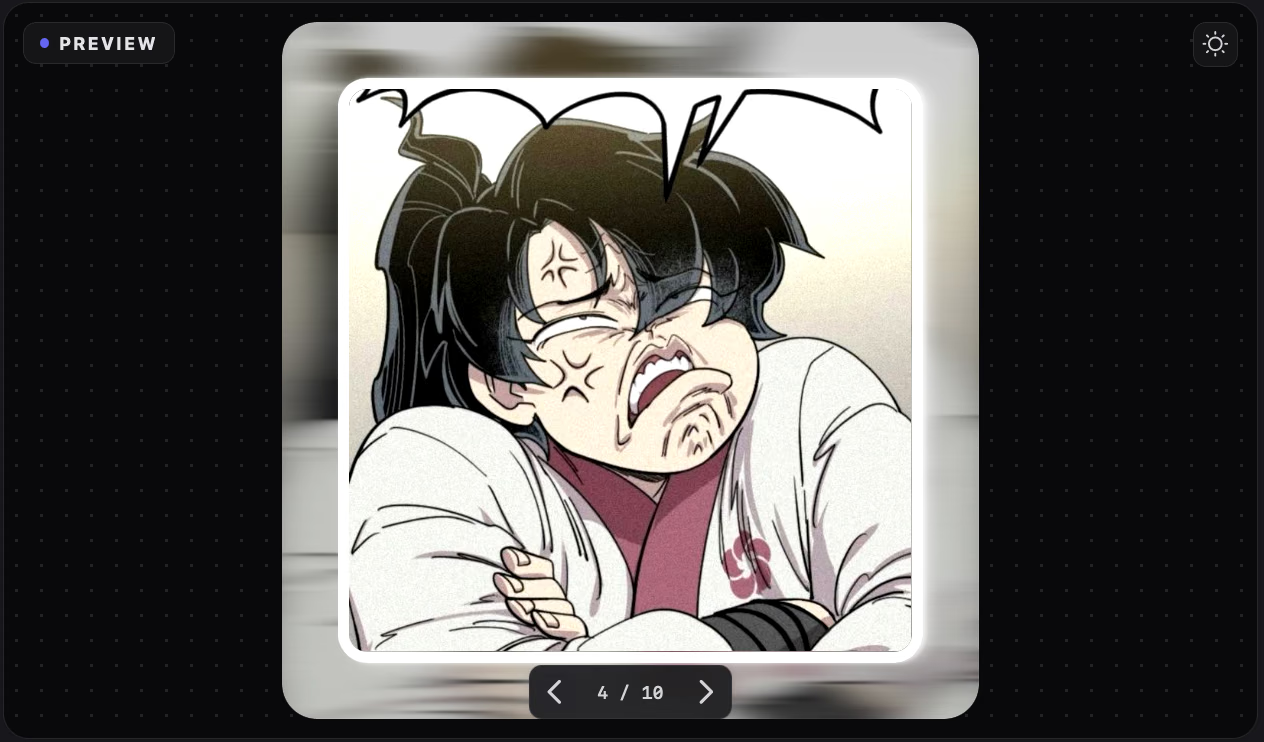
YouTube Recap (16:9 Widescreen)
- Aspect Ratio: 16:9 (Widescreen)
- Fill Mode: Blur (Radius: 6 px)
- Padding: 0.08
- Border: 2 px Solid White (#FFFFFF), Radius: 0.08
- Shadow: Opacity 0.45, Distance: 20 px, Angle: 45°
Shorts & TikTok (9:16 Vertical)
- Aspect Ratio: 9:16 (Vertical)
- Fill Mode: Blur (Radius: 10 px)
- Padding: 0.05
- Border: 0 px (None)
- Shadow: Opacity 0.60, Distance: 15 px, Angle: 90°
Force Override Toggle
Section titled “Force Override Toggle”At the bottom of the inspector, toggle Force Override if you want to re-crop and re-render visual assets for chapters that were already processed. When turned off, existing crops on disk are preserved to speed up batch processing.