
Importing Chapters
The Import step brings local manhwa chapters into an open Project. Because RecapSynth runs locally, folder scanning and image ingestion happen directly on disk without external file-upload overhead.
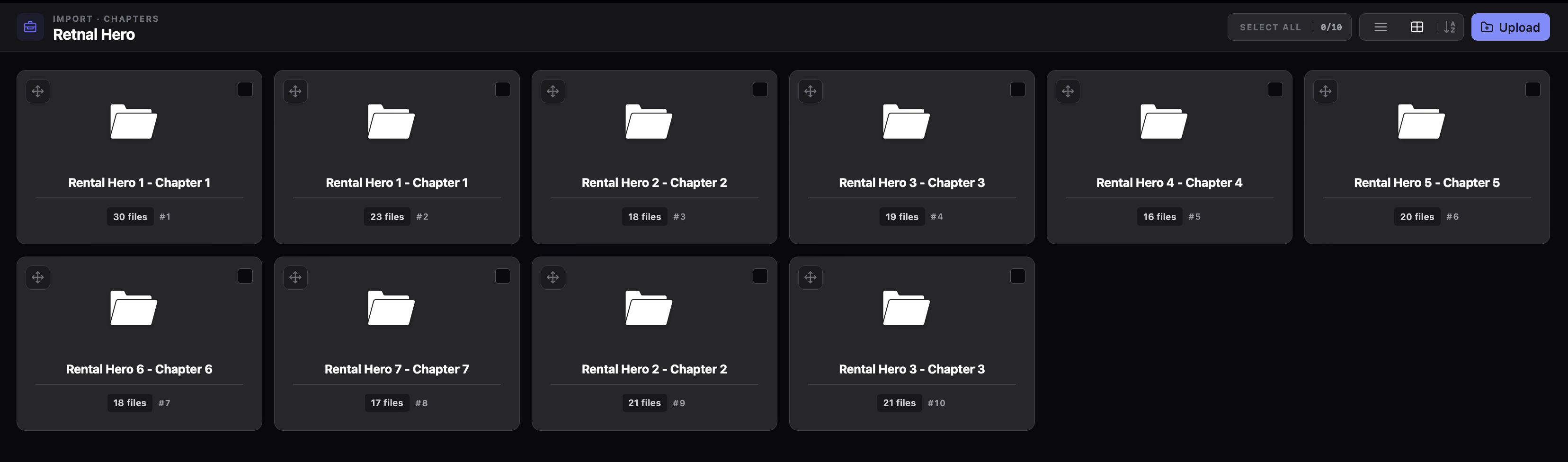
Folder Detection & Ingestion
Section titled “Folder Detection & Ingestion”When you select folders, RecapSynth scans their directory structures for supported images:
.jpg
.jpeg
.png
.webp
.bmp
Each folder you select (whether picking a single folder, multiple folders at once, or a top-level manhwa directory) is evaluated independently using these rules:
If the selected folder contains images and no nested image folders, it is imported as a single chapter named after that folder.
If the selected folder contains nested image folders, nested folders are imported recursively as chapters and any loose images at the root of that folder are ignored.
Parent Folder Example
Section titled “Parent Folder Example”When you select the top-level manhwa folder, RecapSynth recursively discovers all chapter folders—including nested subchapters—while ignoring loose root images:
DirectorySolo Leveling/
- cover.jpg (ignored)
DirectoryChapter 1/
- 001.jpg
- 002.jpg
DirectoryChapter 2/
- 001.jpg
- 002.jpg
DirectoryChapter 3/
- 001.jpg
- 002.jpg
DirectoryChapter 1/
- 001.jpg
- 002.jpg
- Chapter 1Top-level
- Chapter 2Top-level
- Chapter 3Top-level
- Chapter 3 - Chapter 1Nested
cover.jpg directly inside Solo Leveling/ is ignored because nested chapter folders exist.
Chapter Naming & Duplicate Handling
Section titled “Chapter Naming & Duplicate Handling”- Contextual nested names: Nested folders are named by joining their relative path with
-(for example,Chapter 3/Chapter 1becomesChapter 3 - Chapter 1), keeping identically named subchapters distinct. - No cross-import duplicate check: RecapSynth allows duplicate chapter names within the same Project. During import, duplicate detection only applies within the same upload—it does not check against chapters already saved in the project. Re-importing a chapter name that already exists creates a new chapter alongside the saved one rather than skipping or overwriting it.
Automatic Image Ordering & Normalization
Section titled “Automatic Image Ordering & Normalization”During ingestion, RecapSynth automatically:
- Natural-sorts pages by filename (
2.jpgbefore10.jpg). - Normalizes images to 100% quality JPEG (
4:4:4chroma subsampling). - Handles transparency by compositing alpha channels onto a white background.
- Stores processed images inside the local project directory.
Importing Chapters
Section titled “Importing Chapters”1
Click Upload in the top-right toolbar, then click Browse Folders to select one or more chapter folders or a main parent directory.
2
Review the Chapters to Import queue. Drag rows or use the up/down controls to adjust the sequence, or click × to exclude a chapter.
3
Click Import. Chapters ingest sequentially (
Importing X of Y) and populate the workspace when complete.
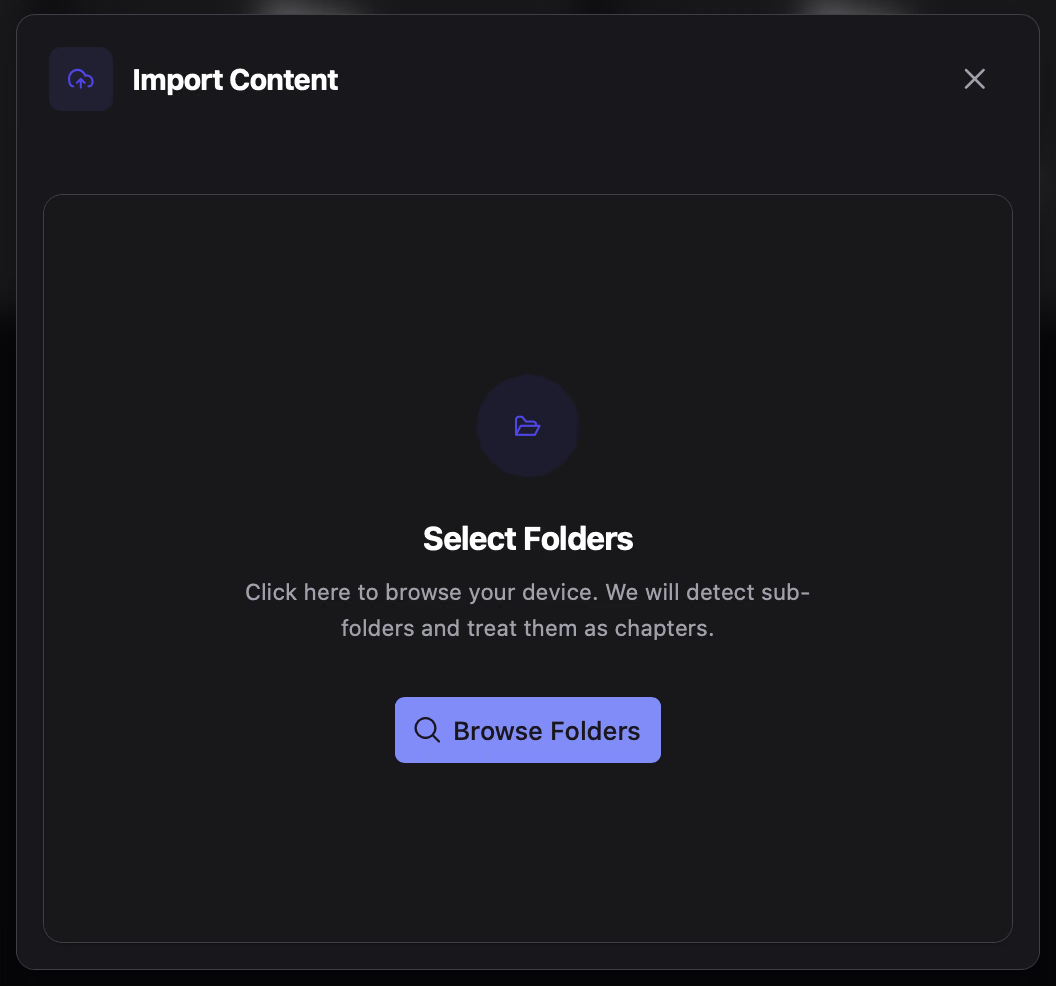
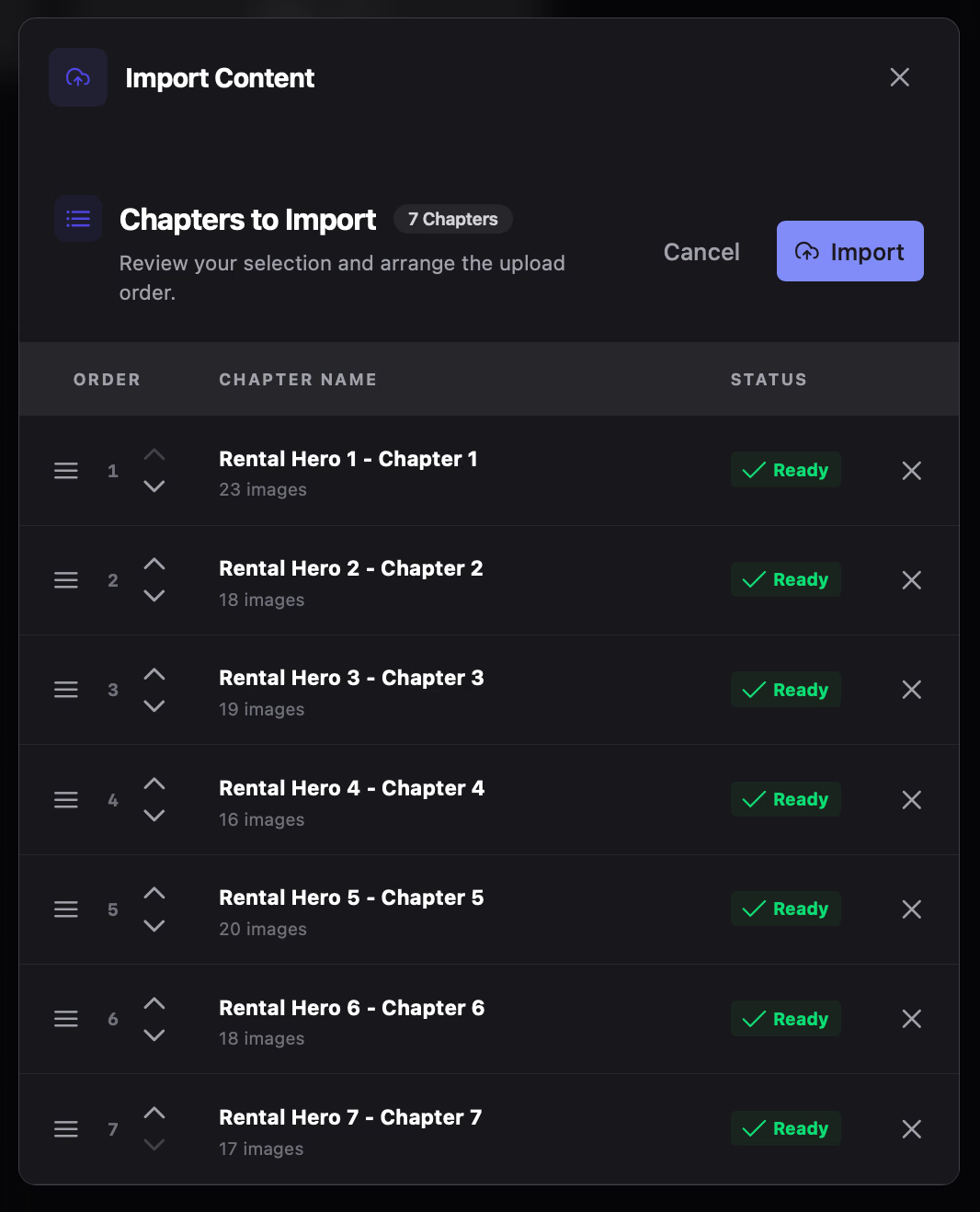
Organizing & Managing Chapters
Section titled “Organizing & Managing Chapters”Automatic Alphanumeric Sorting
Section titled “Automatic Alphanumeric Sorting”The Auto Sort Chapters toolbar button sorts your entire imported chapter list using alphanumeric (natural) ordering — evaluating numeric values rather than pure character order so 10 is treated as greater than 9 (and Chapter 2 precedes Chapter 10), then persists the updated sequence.
- Chapter 3
- Chapter 1
- Chapter 10
- Chapter 2
- 1. Chapter 1
- 2. Chapter 2
- 3. Chapter 3
- 4. Chapter 10
Chapter Workspace Controls
Section titled “Chapter Workspace Controls”- Batch Delete: Select chapters via checkboxes or Select All (
selected/totalcounter), then click the toolbar trash icon.