
OCR and Detection
RecapSynth provides high-performance local AI models directly inside the Write workspace to detect panel boundaries and extract written dialogue without sending raw comic crops to external APIs.
- Detection : Runs ONNX vision detectors to locate panel bounds (polygons) and speech bubbles (OBB - Oriented Bounding Boxes).
- OCR ( Engine): A quantized INT4/INT8 vision-decoder model that reads speech bubble crops and transcribes dialogue into editable text.
Detection vs. OCR
Section titled “Detection vs. OCR”Understanding how the two models interact helps you choose the right task:
- Scans full-height vertical page strips with seam overlap.
- Creates polygon boxes for panels and oriented bounding boxes for text.
- Stitches split panels across seams and filters out microscopic noise.
- Does not transcribe text.
- Reads crops from existing speech boxes only.
- Automatically handles inverted contrast (white text on dark/colored backgrounds).
- Fills script cards with raw dialogue text.
- Does not create new boxes on the canvas.
Running Detection & OCR
Section titled “Running Detection & OCR”Click Process in the top toolbar to configure your run:
- 1Select Scope
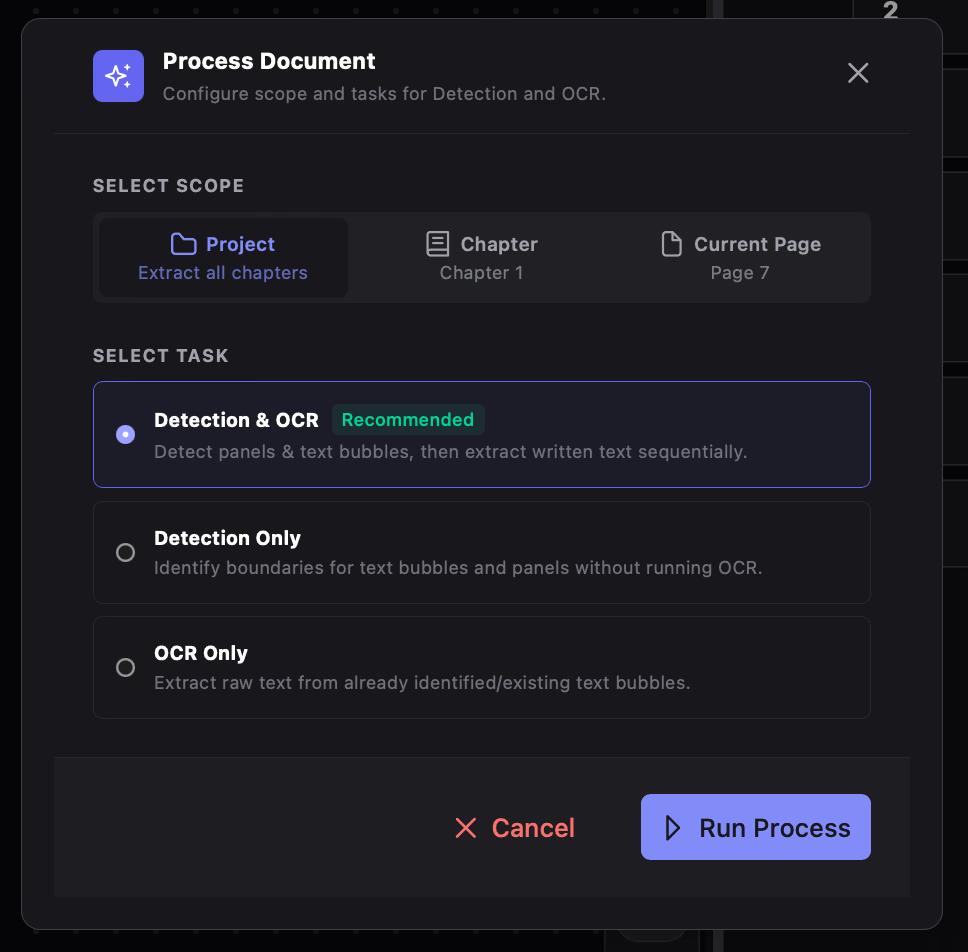
Choose Project (all chapters), Chapter (the active chapter), or Current Page.
- 2Select Task
Choose Detection & OCR (runs both sequentially), Detection Only, or OCR Only.
- 3Run & Monitor
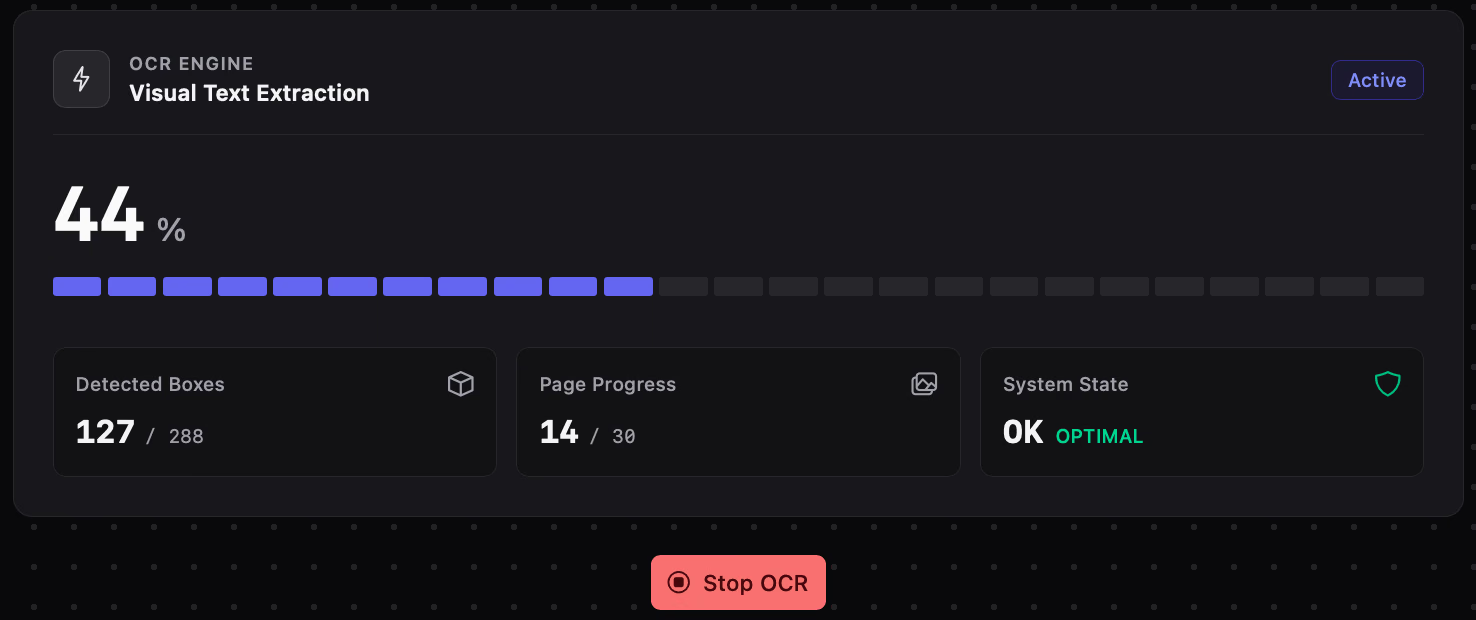
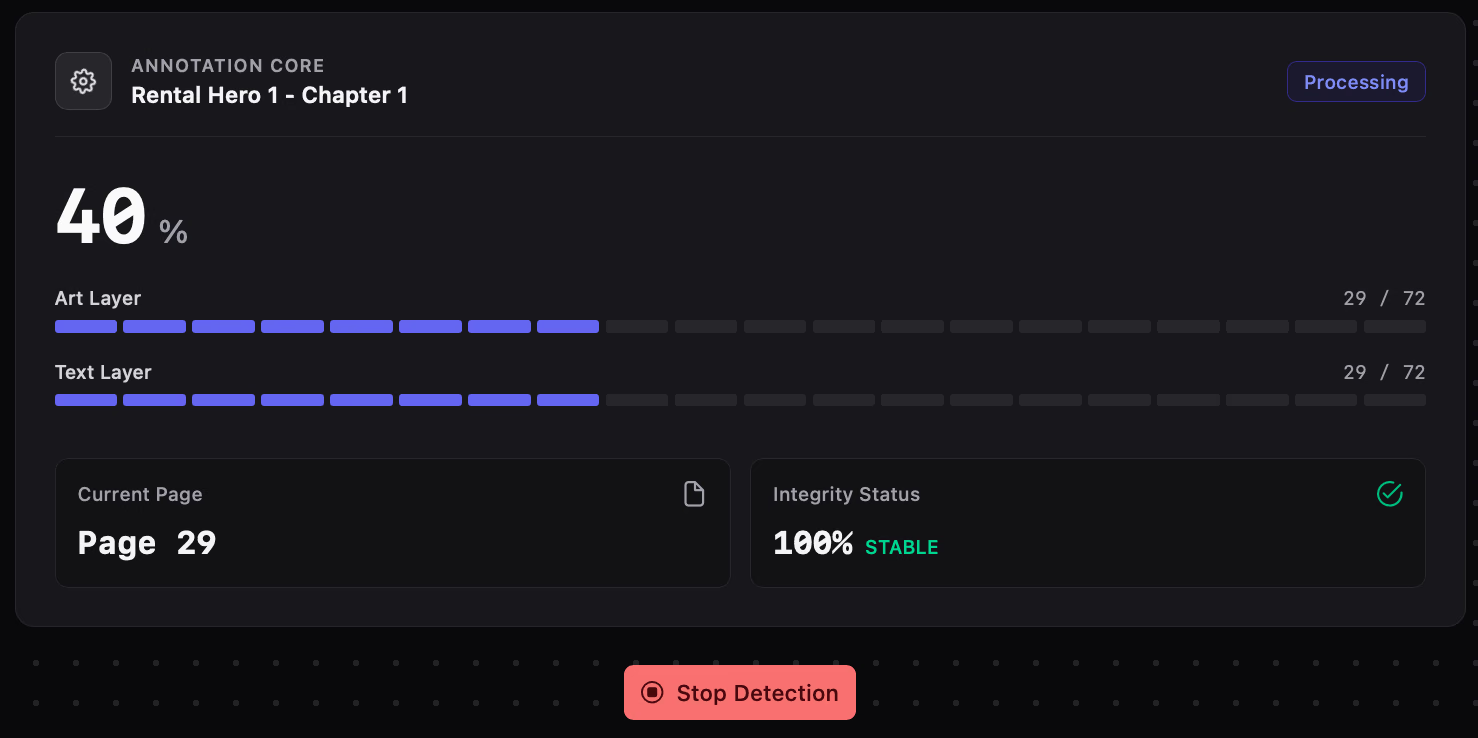
Click Run Process. An active progress overlay replaces the canvas while models run. You can click Stop Detection or Stop OCR at any time.
Single-Page Keyboard Shortcuts
Section titled “Single-Page Keyboard Shortcuts”To quickly process the page you are currently viewing without opening the modal:
- Alt + A: Run Detection & OCR on the current page.
- Alt + O: Run OCR on existing speech boxes on the current page.
Automatic OCR Skipping
Section titled “Automatic OCR Skipping”If you launch an OCR Only job on a scope where all speech boxes have already been transcribed, the system avoids wasting time or credits. It displays an informational toast:
Nothing to OCR: All selected pages are already processed, or have no detection boxes.
If you drew new boxes or altered box boundaries and want to force re-transcription, run Detection & OCR or clear annotations for that page first.
Chapter Progress Tracking & Clearing
Section titled “Chapter Progress Tracking & Clearing”Click the list icon in the top toolbar to open the Chapters Drawer. The drawer provides a real-time audit of your progress:
- ART Progress Bar: Percentage of pages with panel bounding boxes detected.
- OCR Progress Bar: Percentage of pages whose text bubbles have been transcribed.
- Clear Chapter (Trash icon): Wipes all detection boxes and script lines for that chapter. Useful if you want to re-run detection with different parameters.