
Splitting Long Pages
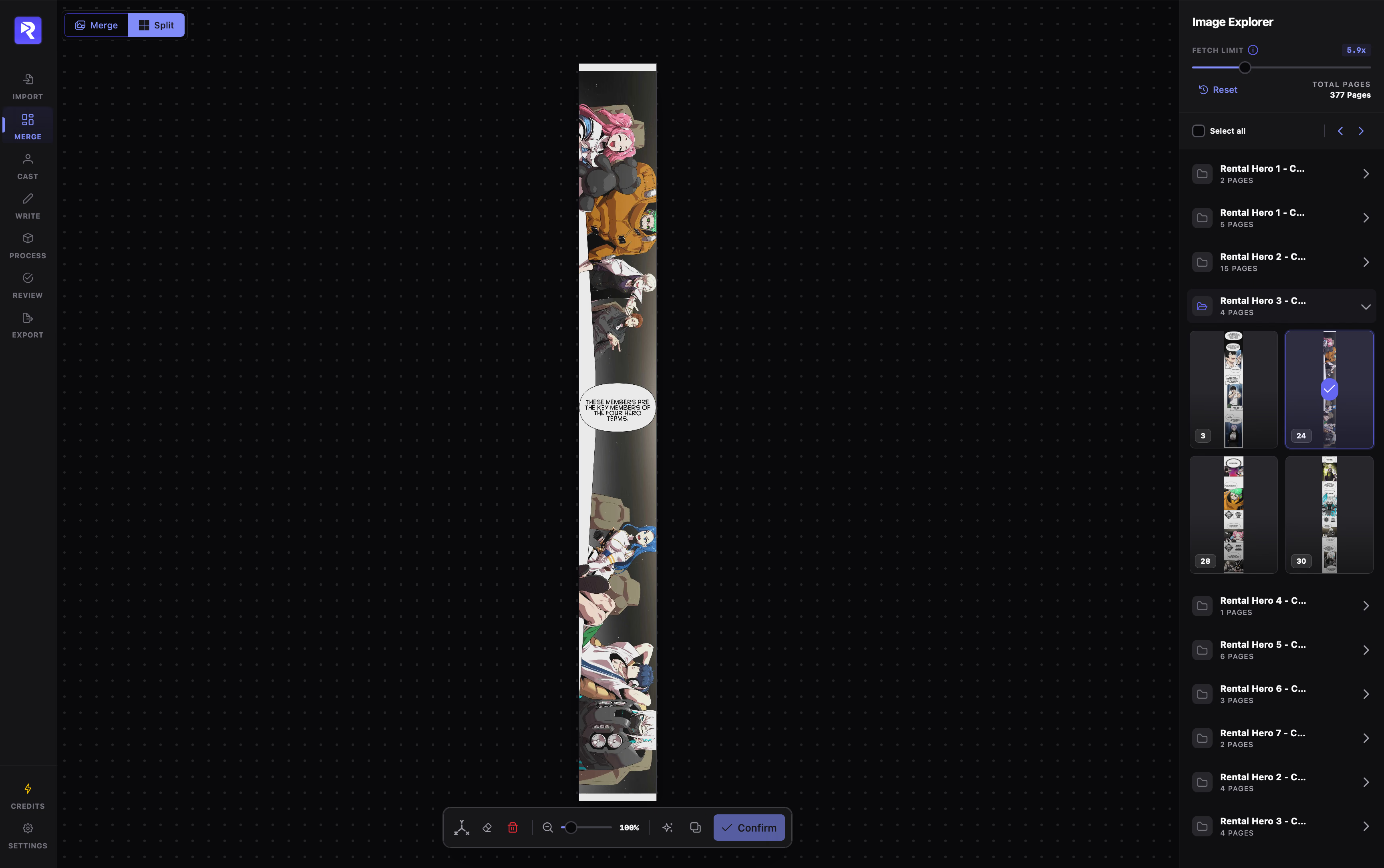
Splitting Long Pages cuts ultra-tall vertical strips into smaller, editor-friendly segments. While Merge is grouped under the same rail entry, switch to the Split tab at the top-left to slice individual pages. If all your pages are already a comfortable height, skip this step.
Filtering Long Pages with Fetch Limit
Section titled “Filtering Long Pages with Fetch Limit”Rather than listing every page in your project, the Image Explorer uses a Fetch Limit (0.0x – 20.0x, step 0.5) to surface only pages whose height-to-width ratio exceeds your threshold:
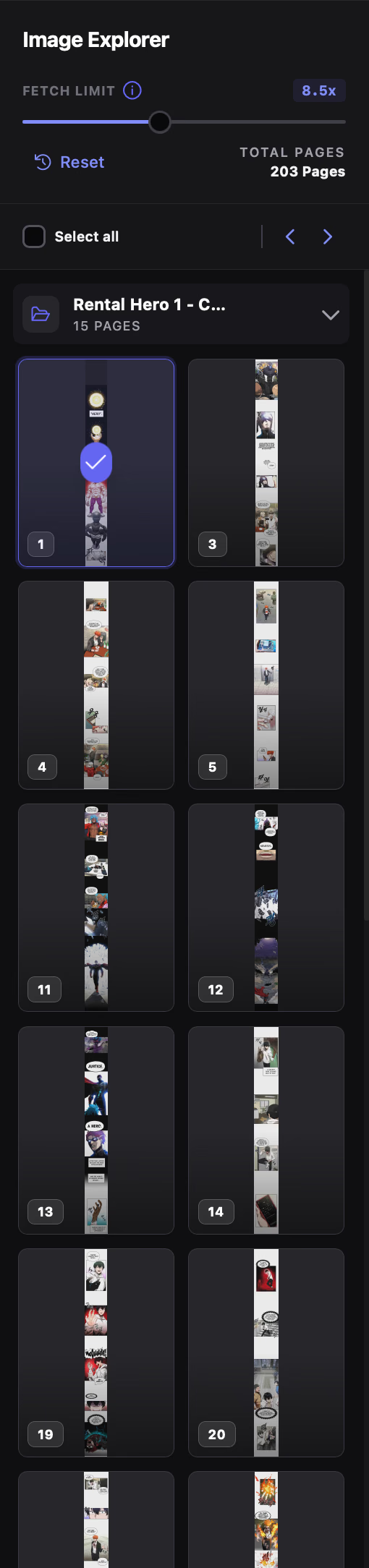
For example, at 5.0x, a 1000×3000px page (3.0x) stays hidden.
A 1000×6500px strip (6.5x) appears in its chapter group for slicing.
Updating the slider re-scans page ratios; click Reset to return to your default threshold.
If no pages exceed the current Fetch Limit, lower the slider to include shorter pages. You can also expand/collapse chapters, step through pages with the chevron buttons, or select multiple thumbnails for bulk deletion.
Placing Split Lines & Confirming
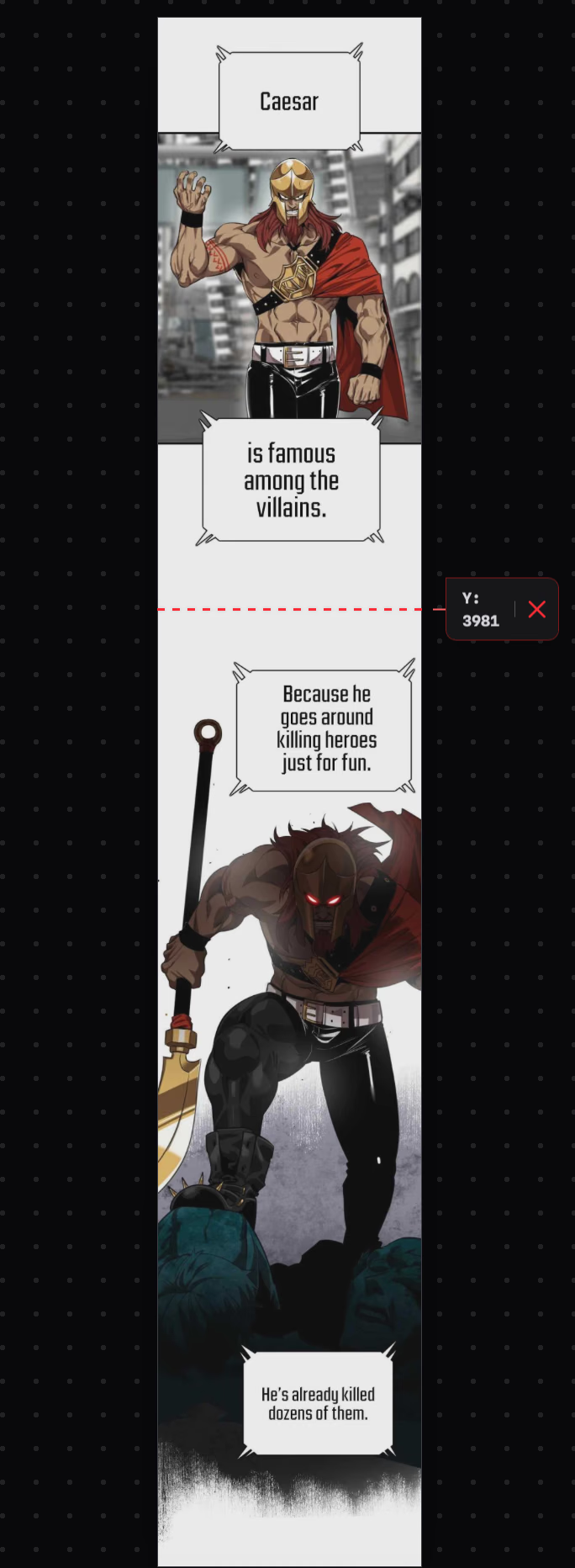
Section titled “Placing Split Lines & Confirming”Select any thumbnail in the Image Explorer to load it onto the central canvas, then place cut lines manually or via AI detection:
- 1
Navigate the canvas: Drag the background to pan, use Ctrl/Cmd + mouse wheel (or the
50%–300%slider) to zoom, and press R to reset view. - 2
Place cut lines: Click anywhere on the strip to add a horizontal cut line (click × on a line label to remove it, or Clear Lines to wipe all lines on the current page).
- 3
Apply splits: Click Confirm in the bottom toolbar (or press Enter) to slice the image into new sequential page files.
AI Auto-Detect Splits
Section titled “AI Auto-Detect Splits”Instead of placing every cut manually, use the sparkles buttons in the bottom toolbar to generate suggested cut points inside panel gutters:

- Auto-Detect (Current Page) (A): Suggests split lines for the active canvas image only.
- Auto-Detect (All Pages): Analyzes every long page currently listed in the Image Explorer.
Review or adjust the suggested lines, then click Confirm to execute the cuts.
Choosing Between Merge & Split Modes
Section titled “Choosing Between Merge & Split Modes”| Workflow | Best When |
|---|---|
Auto-Stitch (Merge → Auto) |
You want automated batch merging and slicing across chapters using a single Target Scale ratio. |
Auto-Detect (Split tab) |
You want smart gutter-aware split suggestions across long pages that you can inspect before confirming. |
Manual Split (Split tab) |
You need exact pixel-level control over where specific long pages are divided. |
Keyboard Shortcuts
Section titled “Keyboard Shortcuts”| Shortcut | Action |
|---|---|
| Enter | Slice pages (Confirm) |
| A | Auto-detect splits on current page |
| Delete / Backspace | Clear split lines on current page |
| ← / → | Previous / Next page |
| R | Reset pan and zoom |
| Ctrl/Cmd + Wheel | Zoom in / out |
Next Stage: Cast
Section titled “Next Stage: Cast”Once your chapters and pages are merged and sliced to clean dimensions, proceed to Cast in the navigation rail. In Cast, RecapSynth detects character heads across your pages, clusters recurring appearances together, and lets you identify and name each character before moving on to scripting in Write.