
Credits and Billing
Credits power RecapSynth’s AI processing and timeline export operations. Your credit balance belongs to your account and is shared across every project on your workspace.
This reference explains which features consume credits, how to preview maximum costs before starting a job, and how monthly allowances refresh across plans.
What Consumes Credits?
Section titled “What Consumes Credits?”Credits are calculated based on the features you turn on and the volume of pages or content processed. Not every action in RecapSynth costs credits—manual editing, reviewing scripts, and exporting plain script text are always free.
AI-assisted script generation and two-pass Condensed text synthesis in the Process pipeline.
Automated art and head detection, chapter and project clustering, name extraction, visual head matching, and speaker script assignment.
Voiceover generation, image cropping and visual styling in Process, as well as Auto Stitching when combining pages.
Generating the OpenTimelineIO (.otioz) project bundle and applying Smart or Random camera motion and transitions.
Checking Your Balance & Cost Estimates
Section titled “Checking Your Balance & Cost Estimates”Before running any large batch, RecapSynth lets you check both your current balance and the maximum expected credit cost:
- Editor Navigation Rail: Click Credits to inspect Your balance, click Refresh, or jump to View plans. The icon turns amber when your balance reaches zero or below.
- Settings → Subscription Plans: Displays your remaining credits, monthly allowance, usage bar, and next renewal date.
- Process Screen: Displays Est. max credits in the header. Toggling Script, Audio, Crop, or changing chapters updates this estimate automatically.
- Export Screen: Displays Est. max in the top bar based on your selected chapters, Motion, and Transitions settings.
Not Enough Credits
Section titled “Not Enough Credits”If an action requires more credits than your account currently holds, RecapSynth pauses before charging and displays a Not enough credits dialog.
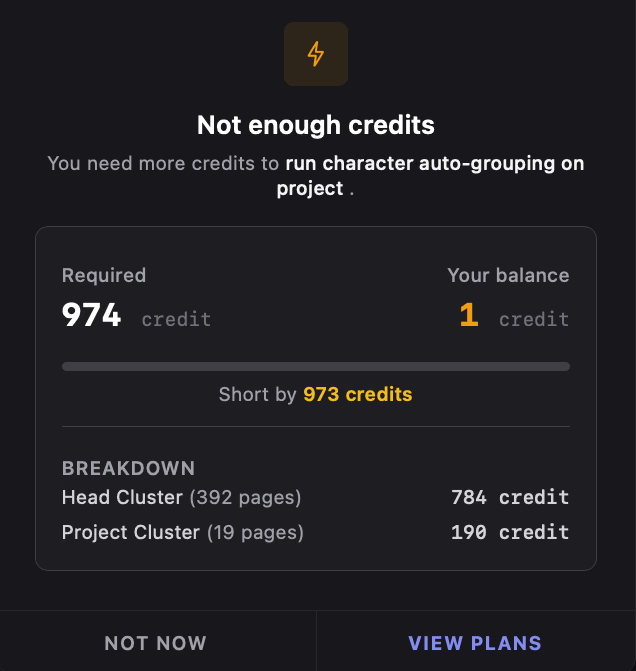
- Required & Your Balance: Compares the estimated job cost against what you have left, with a progress bar and exact Shortfall count.
- Cost Breakdown: When available, lists each feature included in the estimate alongside its individual credit cost.
- Next Steps: Click View Plans to open Settings → Subscription Plans and upgrade, or click Not now to close the dialog and run fewer chapters or features.
How Credits Refresh & Carry Over
Section titled “How Credits Refresh & Carry Over”When a paid plan starts or renews each month, RecapSynth resets your balance to that tier’s monthly credit allowance. Unused credits from the previous month do not carry over or stack on top of the new allowance.
If you switch plans mid-cycle, your updated plan and credit adjustment take effect as soon as the payment service confirms the change.
Free Tier accounts can claim a configured monthly allowance of free credits, subject to both account and device claim limits.
If your account or computer has already claimed its free monthly credits for the current cycle, additional claims are blocked until the next eligible period.
Cancelling a subscription does not wipe your remaining credits immediately. You keep your existing balance for the remainder of the paid period you already covered.
Once that paid period expires (assuming you do not switch to another active subscription), remaining paid subscription credits are cleared.
Common Questions
Section titled “Common Questions”No. On each billing renewal, your credit balance resets to your current plan’s monthly allowance rather than stacking on top of leftover credits.
No. You keep your remaining credits until the end of your current paid billing period.
Check your finished chapters in Review, then adjust your selection so you only re-run the remaining chapters without overriding completed work.
Free monthly claims are tracked per account and per device. If either has already claimed free credits this month, you cannot claim again until next month.