Skip to content

Head Detection

Head Detection finds character faces inside your manhwa panels and saves cropped thumbnails of each head. You can review the results page by page, fix any missed or off-center boxes, and prepare clean face crops for Character Clustering.

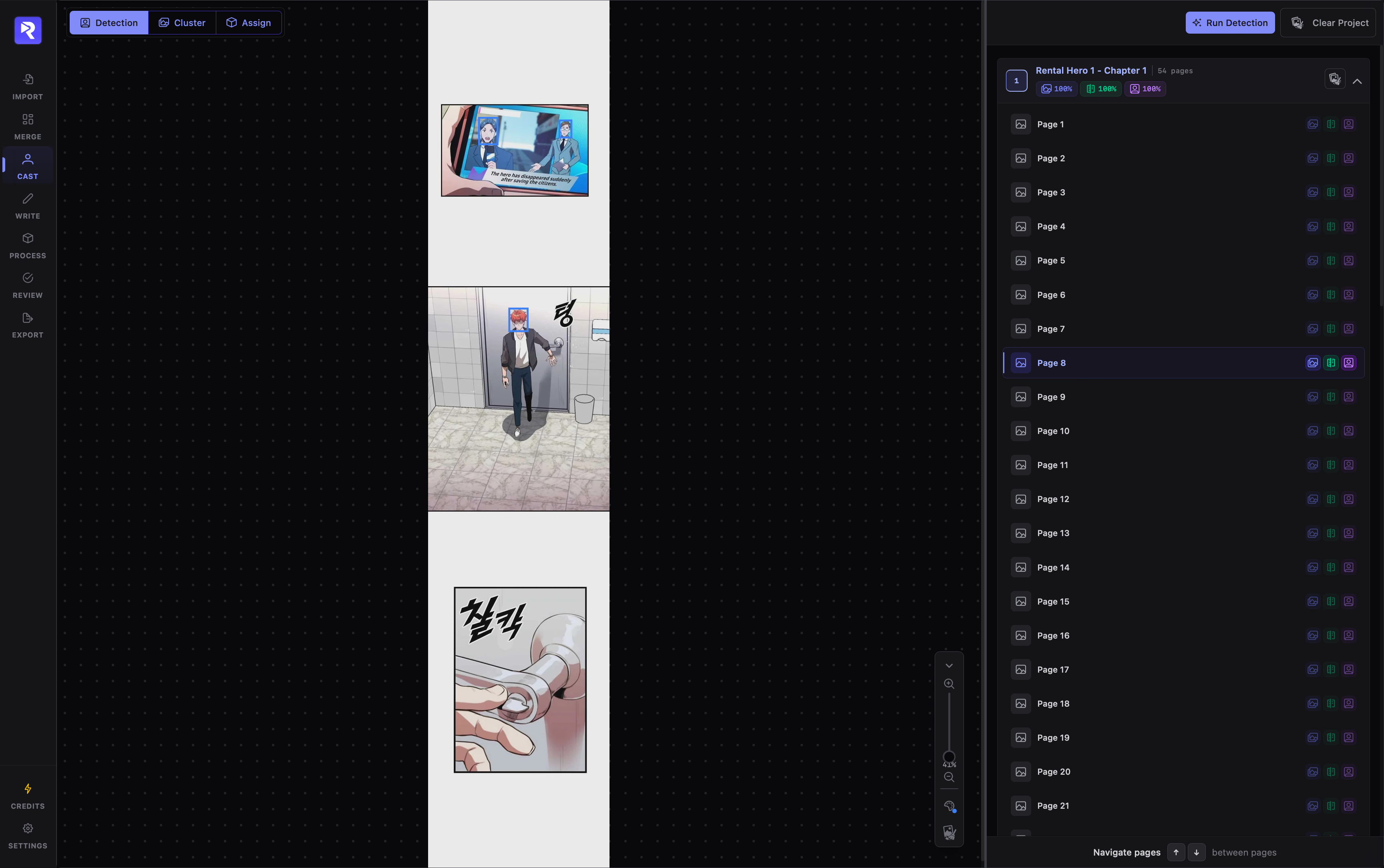
Head Detection workspace with the page viewer on the left and the chapter and page list on the right
Head Detection workspace

Click Run Detection at the top of the right sidebar to open the Head Detection Configurator. Follow the three steps inside the modal:

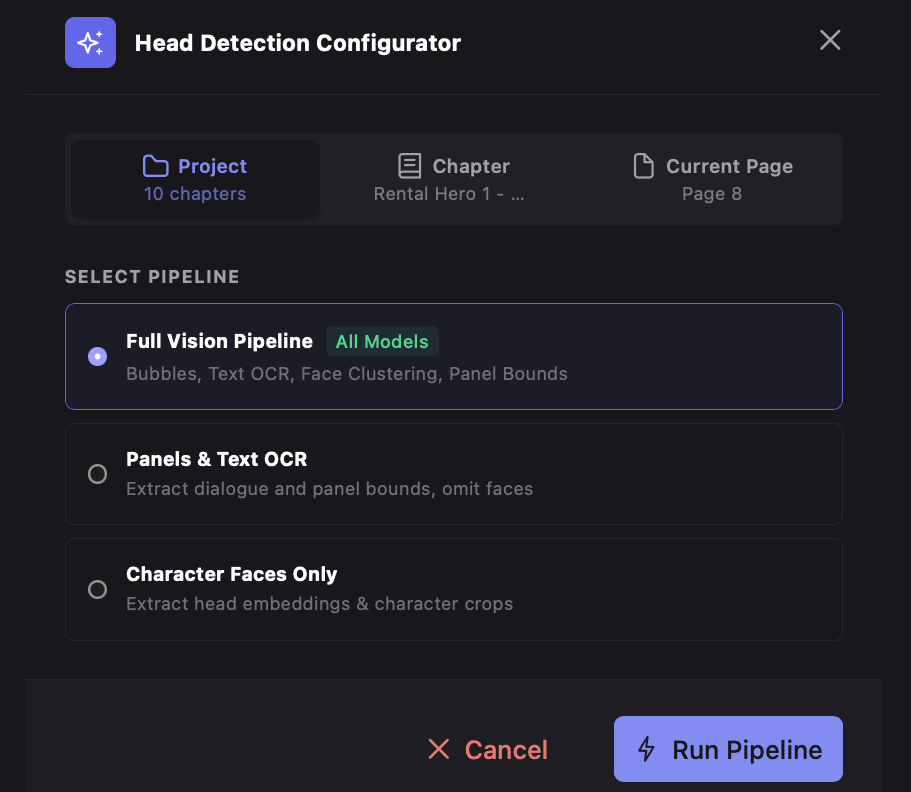
Head Detection Configurator modal showing the Scope switch and Pipeline selection cards
Head Detection Configurator

Use the three-way switch at the top of the modal to decide how many pages to scan:

Project

Scans every chapter in the manhwa. Pages that are already finished are skipped automatically.

Chapter

Scans only the chapter you currently have open. Already-finished pages in that chapter are skipped.

Current Page

Scans only the page open in the viewer—and re-runs it even if it was already scanned, replacing its old boxes.

Select one of the three pipeline modes depending on what has already been processed in your project:

Full Vision Pipeline

Detects panels & speech bubbles, reads dialogue (OCR), and extracts character faces in one run. Use this on new chapters.

Panels & Text OCR

Finds panels and speech bubbles and extracts dialogue text, skipping face detection. Use this if you only want panels and text first.

Character Faces Only

Scans for character faces inside existing panels. Use this when panels are already detected.

Click Run Pipeline to start. A live progress screen covers the canvas while pages are processed. You can click Stop Detection or Stop OCR at any time—any pages already completed remain saved.


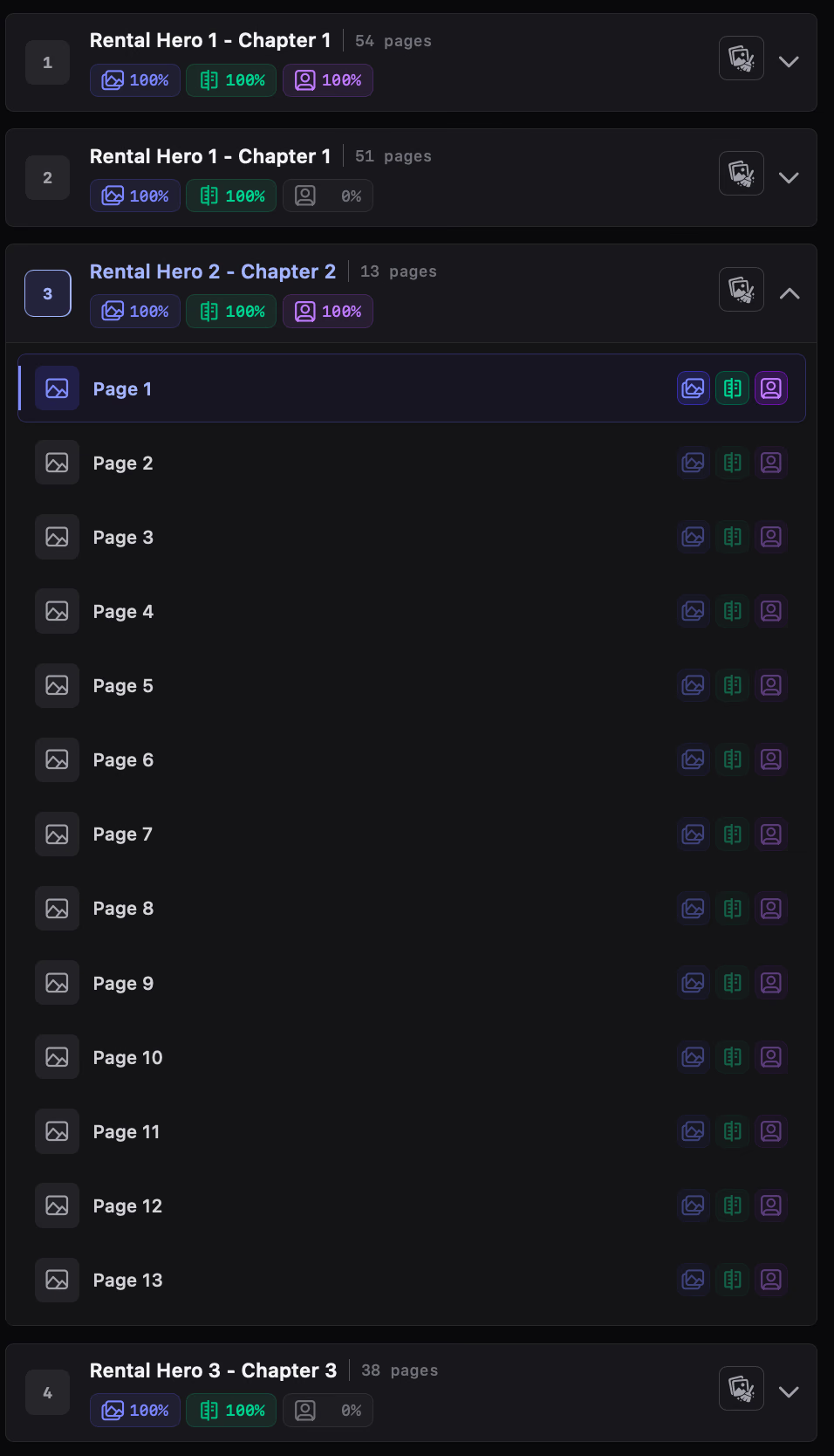
The right sidebar tracks completion across every chapter and page so you can spot unfinished work at a glance.


RecapSynth progress sidebar showing chapter completion percentages and individual page processing statuses
Progress sidebar

Panels

Tracks pages where panel layouts and speech bubbles have been detected. This stage prepares page content for further analysis and processing.

Text OCR

Tracks pages whose dialogue and text have been recognized. Completed OCR makes extracted text available for subsequent script generation.

Heads

Tracks pages scanned for character faces. This helps identify and organize character appearances throughout the chapter.

Press ↑ and ↓ to step through pages sequentially. Navigation moves automatically into the next or previous chapter and remembers your last open page when you return.


Automated detection can occasionally miss small background faces, side profiles, or stylized expressions. Use the canvas on the left to adjust boxes and control your view with the floating toolbar in the bottom-right corner.

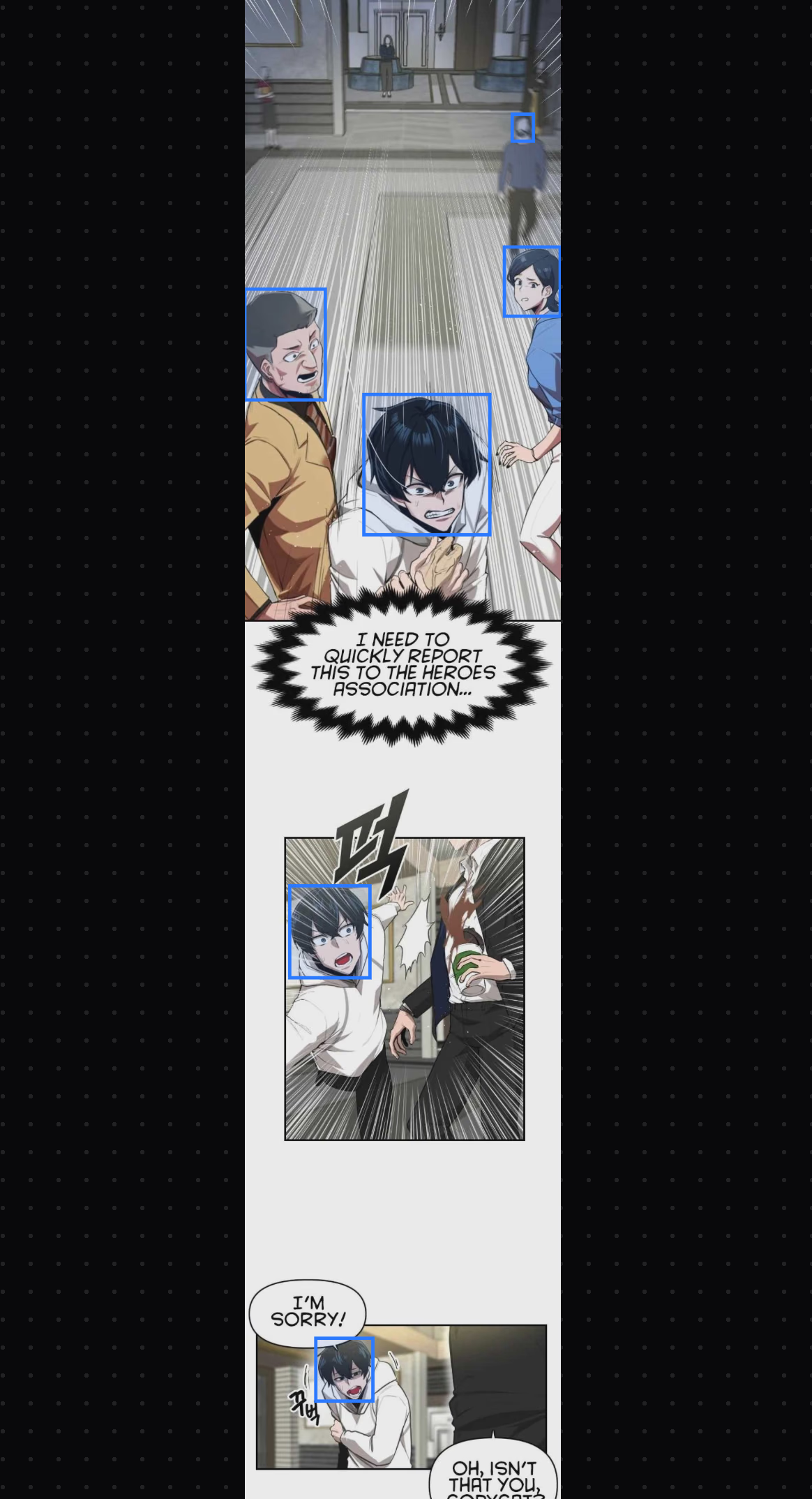
Drawing, resizing, and right-clicking a head detection box on a manhwa page
Canvas editing interface

Canvas Box Editing

Adjust missed detections or refine bounding boxes directly on the canvas.

  • Add faceClick and drag anywhere on the image.
  • Move or resizeDrag a box or any of its corner handles.
  • Remove box

    Right-click a box, or select it and press Ctrl+Delete.

Bottom-right floating toolbar with zoom slider, Box Style panel, and clear page button
Floating toolbar

Floating Toolbar

Control zoom, box appearance, and active page state from the bottom-right dock.

  • Toggle dockCollapse or expand using the top arrow.
  • Zoom

    Use the slider or Ctrl+Scroll.

  • Box StyleCustomize box color, thickness, and fill opacity.

  • Clear pageRemove all boxes on the active page.

If you want to start fresh on a page, chapter, or the whole manhwa, clear its head boxes using the eraser buttons:

  • Current Page: Eraser button at the bottom of the Floating Toolbar.
  • Single Chapter: Eraser button on that chapter’s row in the right sidebar.
  • Entire Project: Clear Project button in the top-right sidebar header.