
Process Overview
The Process workspace is the automated generation hub of RecapSynth. Here, your annotated comic pages, dialogue transcriptions, and character assignments are transformed into cohesive recap narration scripts, synthesized voiceover tracks, and formatted video crop assets.
Screen Architecture
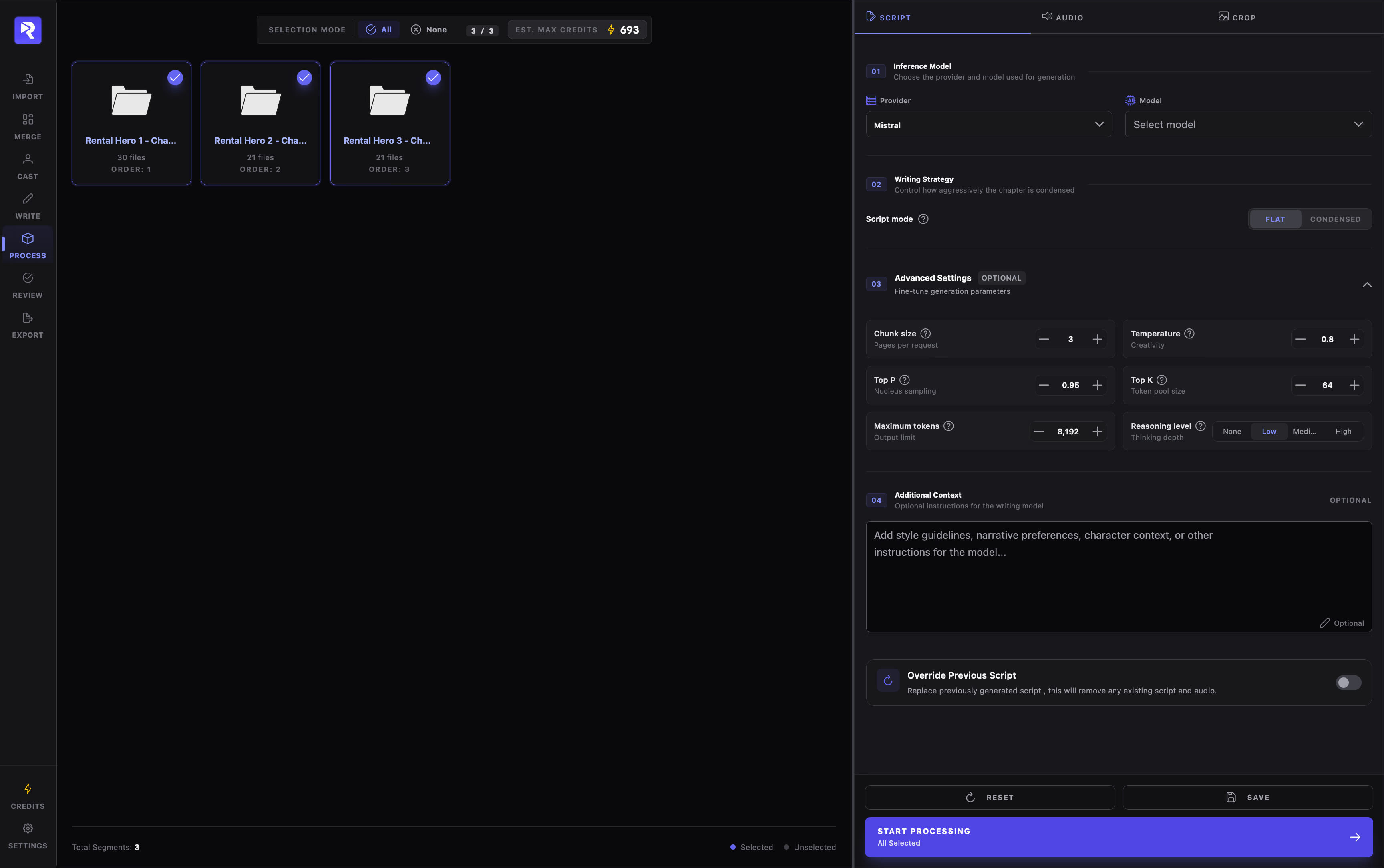
Section titled “Screen Architecture”The Process studio is arranged into two synchronized panels separated by a splitter:
Select which chapters to generate assets for. Features a sticky toolbar with All, None, selection counters, and live estimated credit costs.
Tabbed interface covering Script (LLM reasoning & modes), Audio (TTS engines & voices), and Crop (framing, borders, aspect ratios, and shadows).
The Generation Pipeline
Section titled “The Generation Pipeline”When you click Start Processing, RecapSynth executes three sequential worker steps per chapter:
Synthesizes visual panel descriptions and dialogue transcriptions into finished recap scripts in either Flat or Condensed mode.
Cuts out detected panels, applies contrast boosts, builds target aspect-ratio frames, and renders borders and soft drop shadows.
Generates spoken audio via local or cloud TTS, adds inter-chunk breath pauses, and transcribes audio to time-aligned .srt subtitle tracks.
Step-by-Step Execution
Section titled “Step-by-Step Execution”- 1Select Target Chapters
Click chapter cards to toggle them, or press Ctrl+A to toggle all chapters at once.
- 2Review Settings Across Tabs
Configure Script, Audio, and Crop. Use Save in the footer to store your setup as the project default, or Reset to restore defaults.
- 3Check Credit Estimate & Start
The top badge reflects your max credit cost. Click Start Processing to submit the job.
Real-Time Job Progress
Section titled “Real-Time Job Progress”When processing begins, the screen switches to the active Task Processor display:
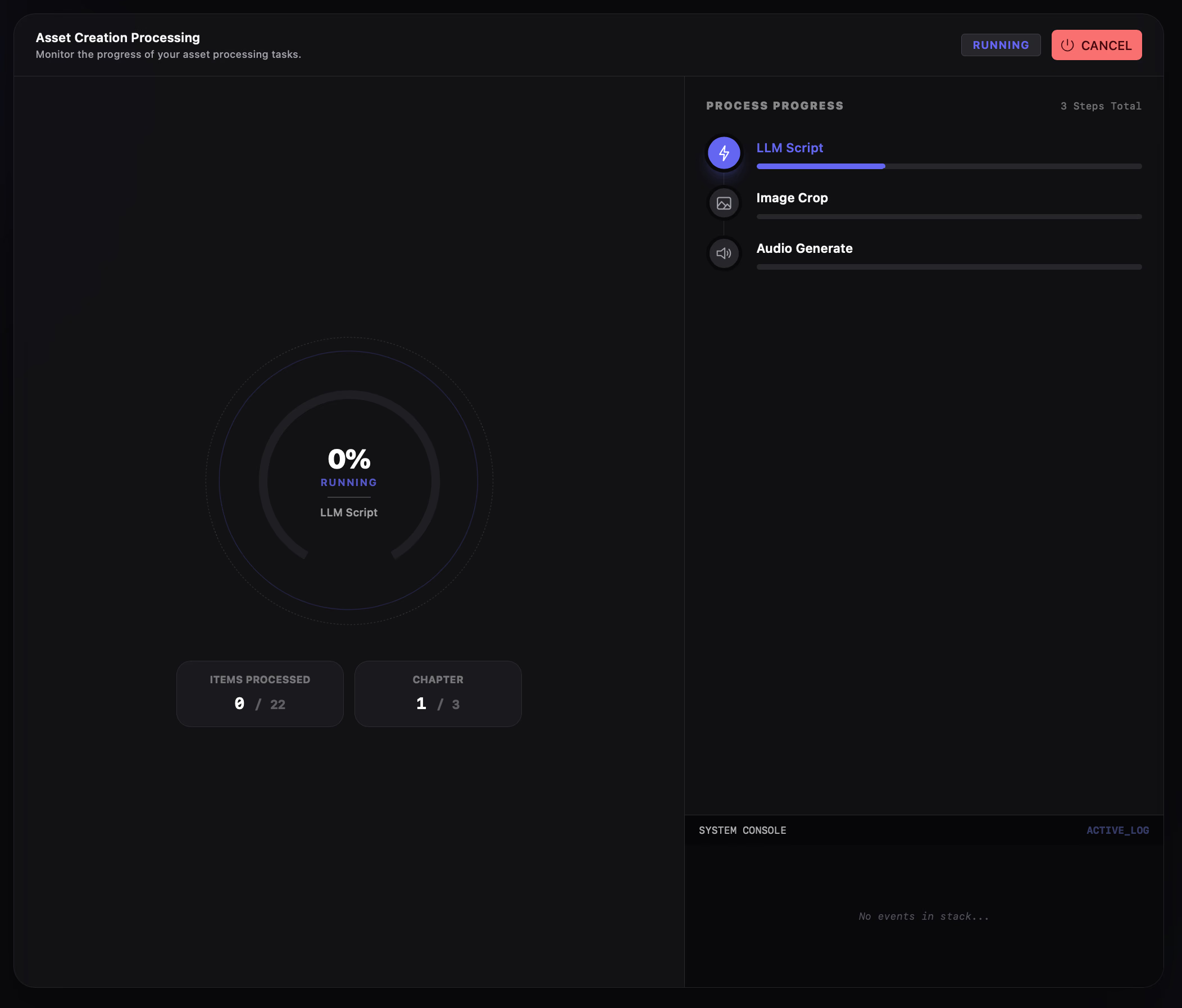
- Independent step cards: Monitor progress bars for LLM Script, Image Crop, and Audio Generate.
- Item counters: Displays exact items and chapters completed (e.g.,
Chunk 4 / 12). - Cancellation: Click Cancel Job to safely abort. Completed chapters remain saved in the database, and only unfinished chapters are skipped.
Override Behavior & Re-running
Section titled “Override Behavior & Re-running”Each settings tab includes an Override toggle:
- Override OFF (Default): Skips chapters that already have generated scripts, audio, or crop files. Use this for incremental runs when you import new chapters later.
- Override ON: Wipes previously generated files and database records for the selected chapters and regenerates them from scratch using your current settings.