
Managing Chapter Pages
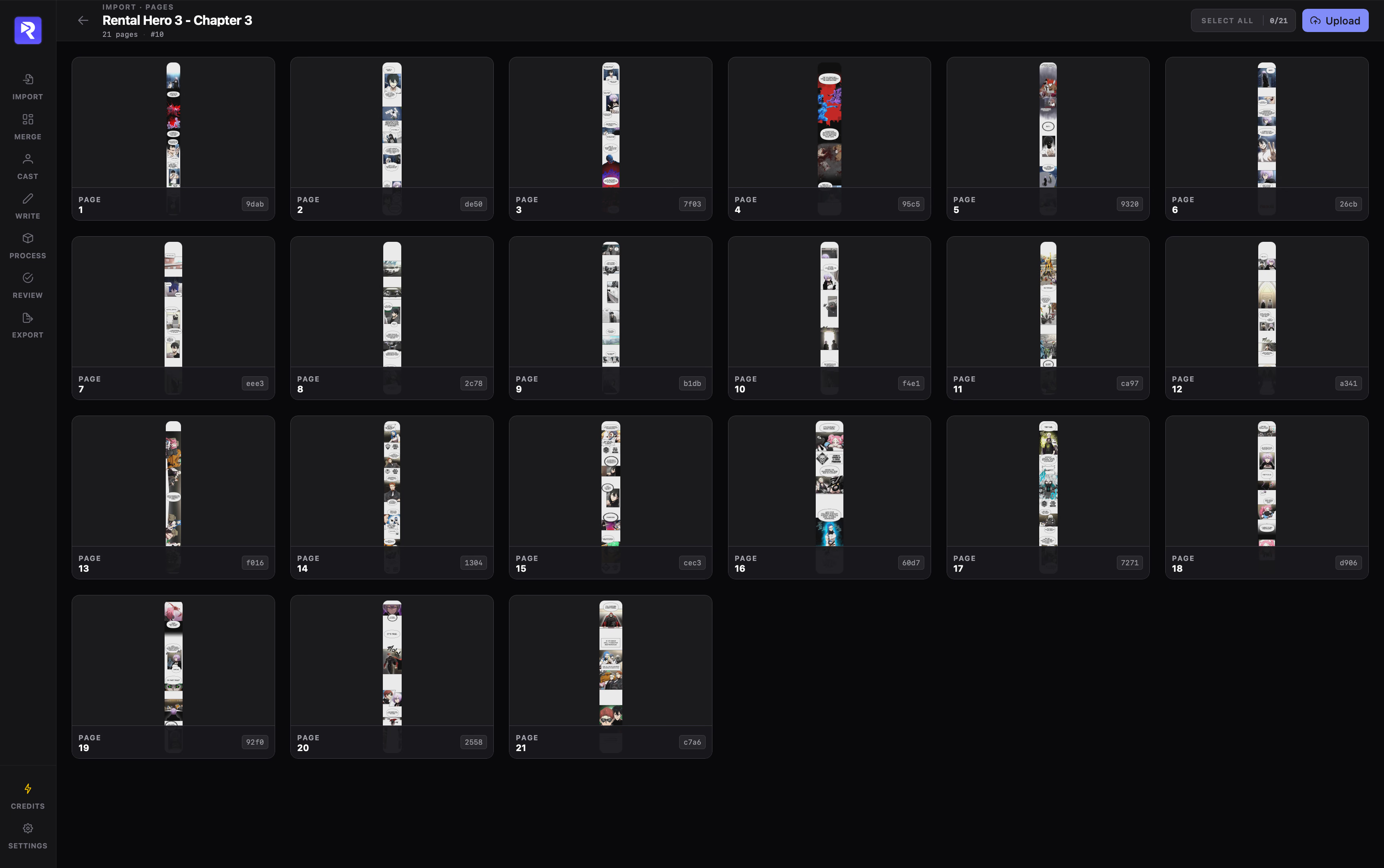
Click any chapter card or row on Import · Chapters to open Import · Pages, where you inspect, reorder, append, or remove individual page images before moving to Merge and Write.
Inspecting & Reordering Pages
Section titled “Inspecting & Reordering Pages”Each card in the grid displays its image thumbnail, sequential Page order (1, 2, 3…), and ID tag. Reading order here directly determines the sequence used in Write, Process, and Export.
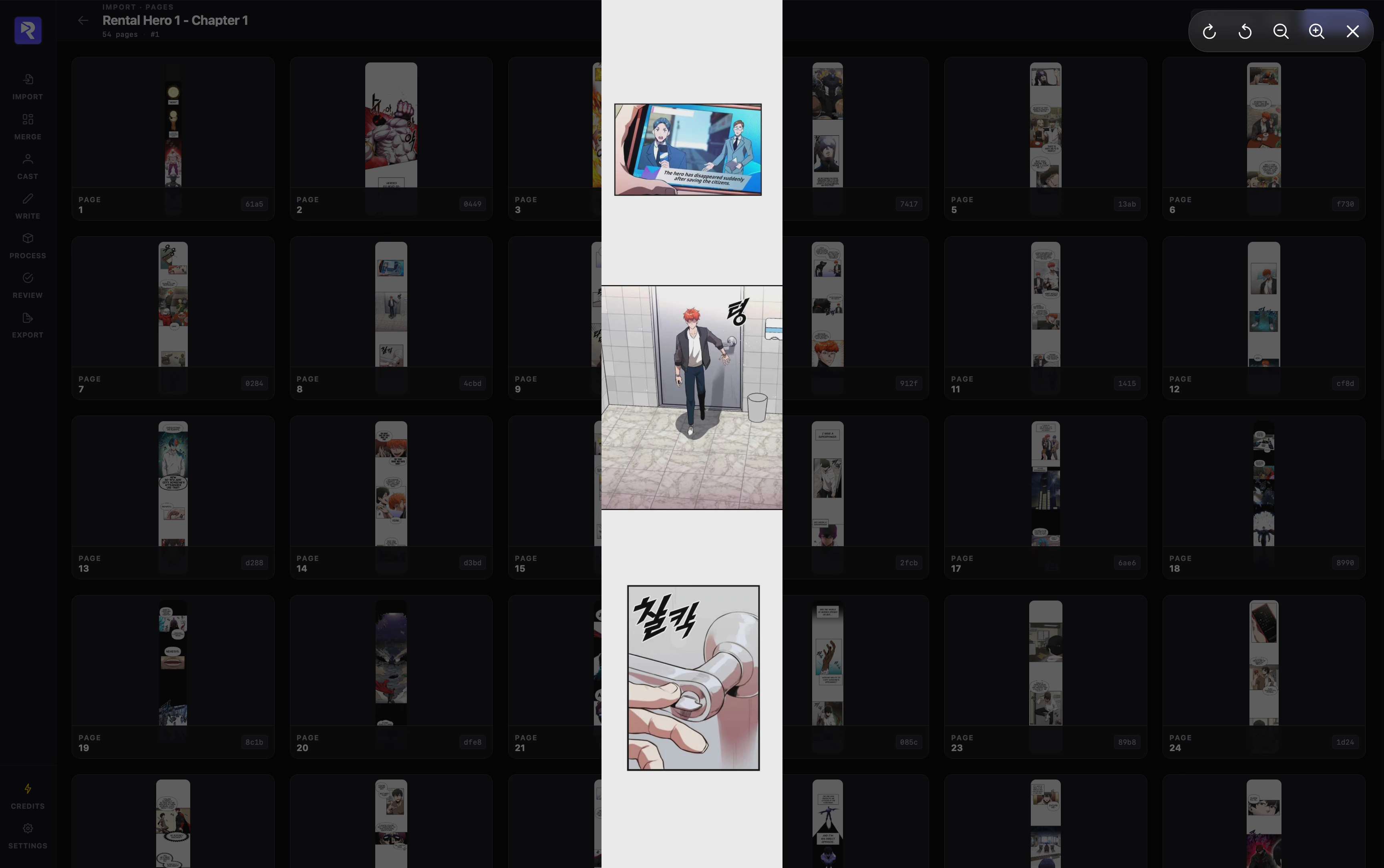
Click any page thumbnail to inspect image clarity and dialogue legibility before OCR.
Hover a card and drag its top-left handle to reposition a page; the updated sequence persists immediately.
Bulk Deletion
Section titled “Bulk Deletion”Select pages via hover checkboxes or Select All (selected/total counter in the toolbar), then click the trash icon to delete them.
Appending New Pages to a Chapter
Section titled “Appending New Pages to a Chapter”Use Upload in the Import · Pages toolbar to add individual images to an existing chapter without re-importing the whole folder.
- 1
Click Upload, then drag and drop images or browse files (
.jpg,.jpeg,.png,.webp,.bmp). - 2
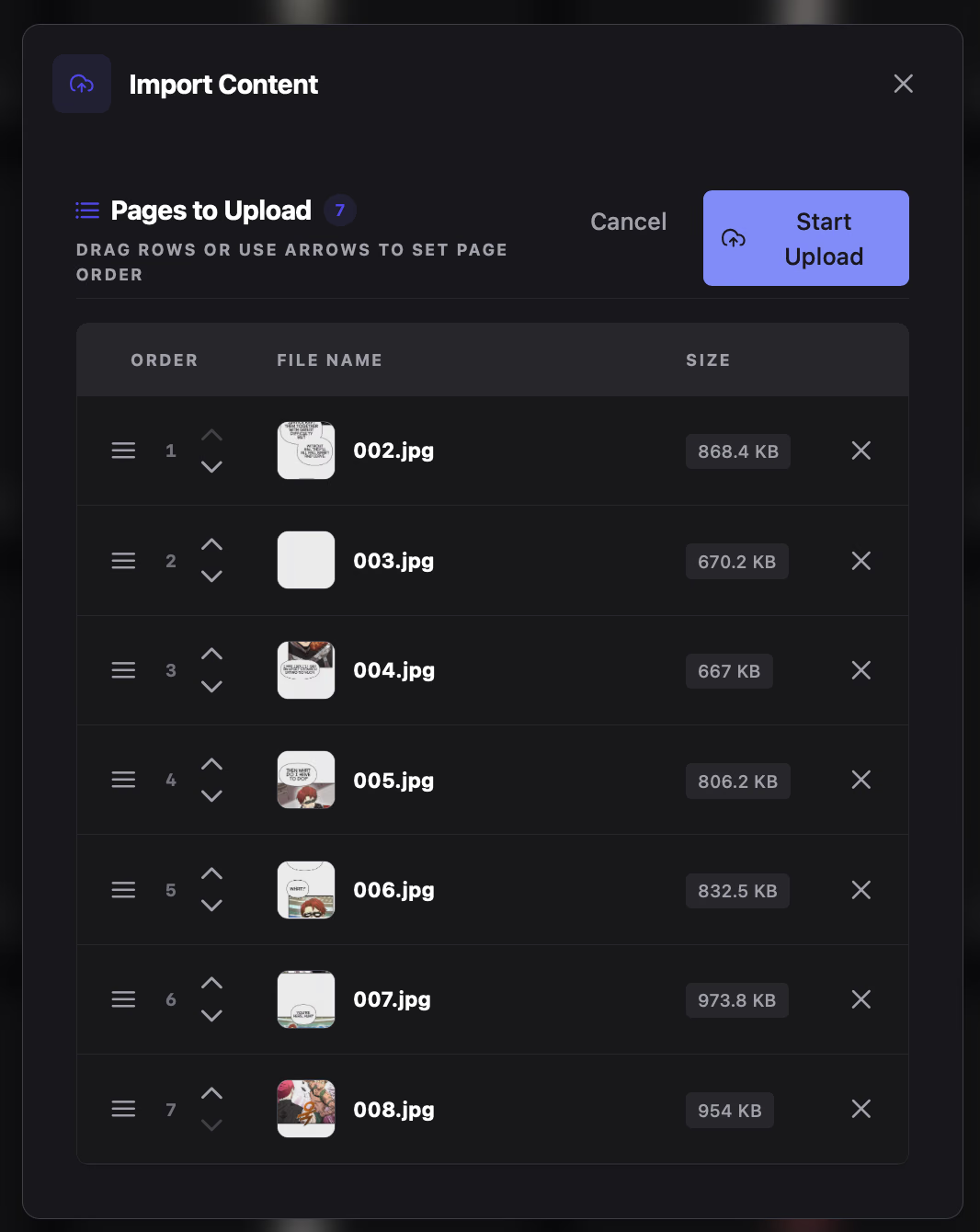
Arrange the Pages to Upload table via drag handles or up/down arrows (or click × to exclude a file).
- 3
Click Start Upload. Images are normalized to 100% JPEG and flagged for splitting if their height-to-width ratio exceeds your configured threshold.
Use the back arrow beside the chapter title to return to Import · Chapters; all page order changes and deletions are saved automatically.