
Exporting Scripts
You can export your project’s narration scripts as standalone documents directly from the Review studio. This is useful for sharing scripts with human voiceover talent, team collaboration, archiving, or importing into external editing tools.
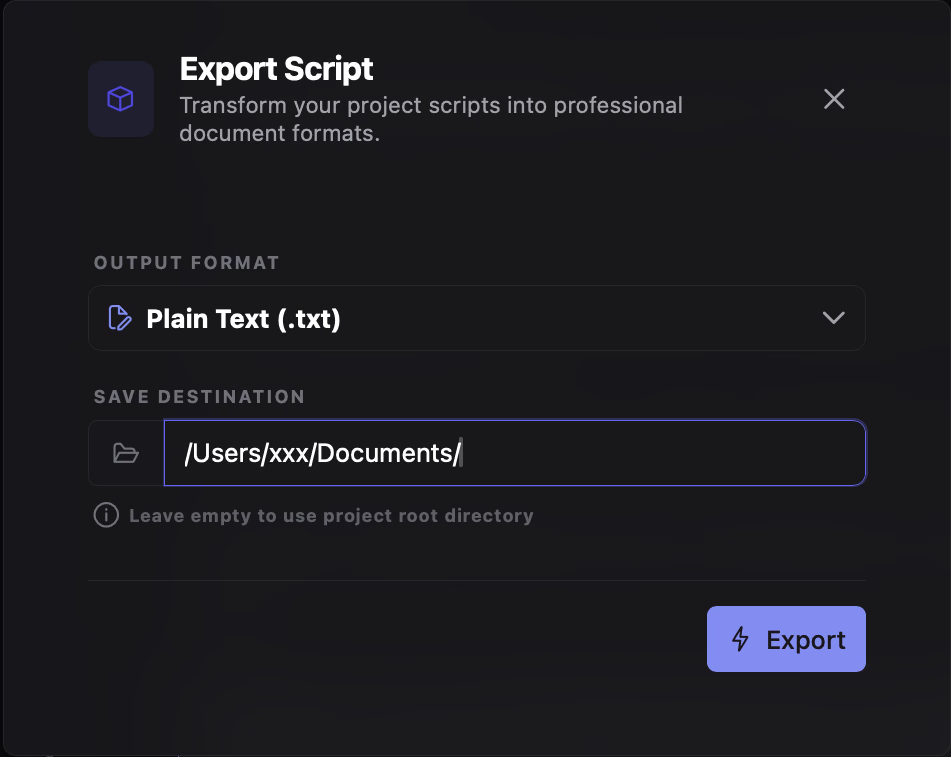
Opening the Export Dialog
Section titled “Opening the Export Dialog”- Navigate to Review in the left navigation rail.
- In the top-right toolbar, click the 3-dot options menu and select Export Script.
Supported Output Formats
Section titled “Supported Output Formats”Choose the format that matches your workflow from the Output Format dropdown:
Clean, universal text format. Narration lines are separated by chapter headings and scene order numbers.
Structured text with Markdown headings, lists, and scene metadata. Ideal for documentation, Obsidian, or GitHub.
Raw structured data containing chapter IDs, scene orders, bounding box IDs, and script strings for developers and automated pipelines.
Formatted document layout ready for printing or sharing with voice actors and clients.
Standalone, styled HTML document viewable in any browser without requiring special software.
Tabular format compatible with Microsoft Excel and Google Sheets, structured by chapter, scene index, and script content.
Save Destination Folder
Section titled “Save Destination Folder”By default, files are saved directly into your project’s root folder on local disk.
To choose a custom folder:
- Click the folder icon on the left of the Save Destination field to open your operating system’s native folder picker.
- Select your desired folder path.
- To reset back to default, clear the text field.
Running the Export
Section titled “Running the Export”- 1Select Format & Path
Pick your preferred file extension and optionally set a target destination directory.
- 2Click Export
Click the primary Export button. A loading indicator appears while the document compiles.
- 3Notification Confirmation
Once saved to disk, a confirmation toast notification confirms the file was exported successfully.