
Uploading Audio
If you record your own voiceover or work with voice actors, you can upload pre-recorded audio directly into RecapSynth instead of generating synthetic AI voiceover.
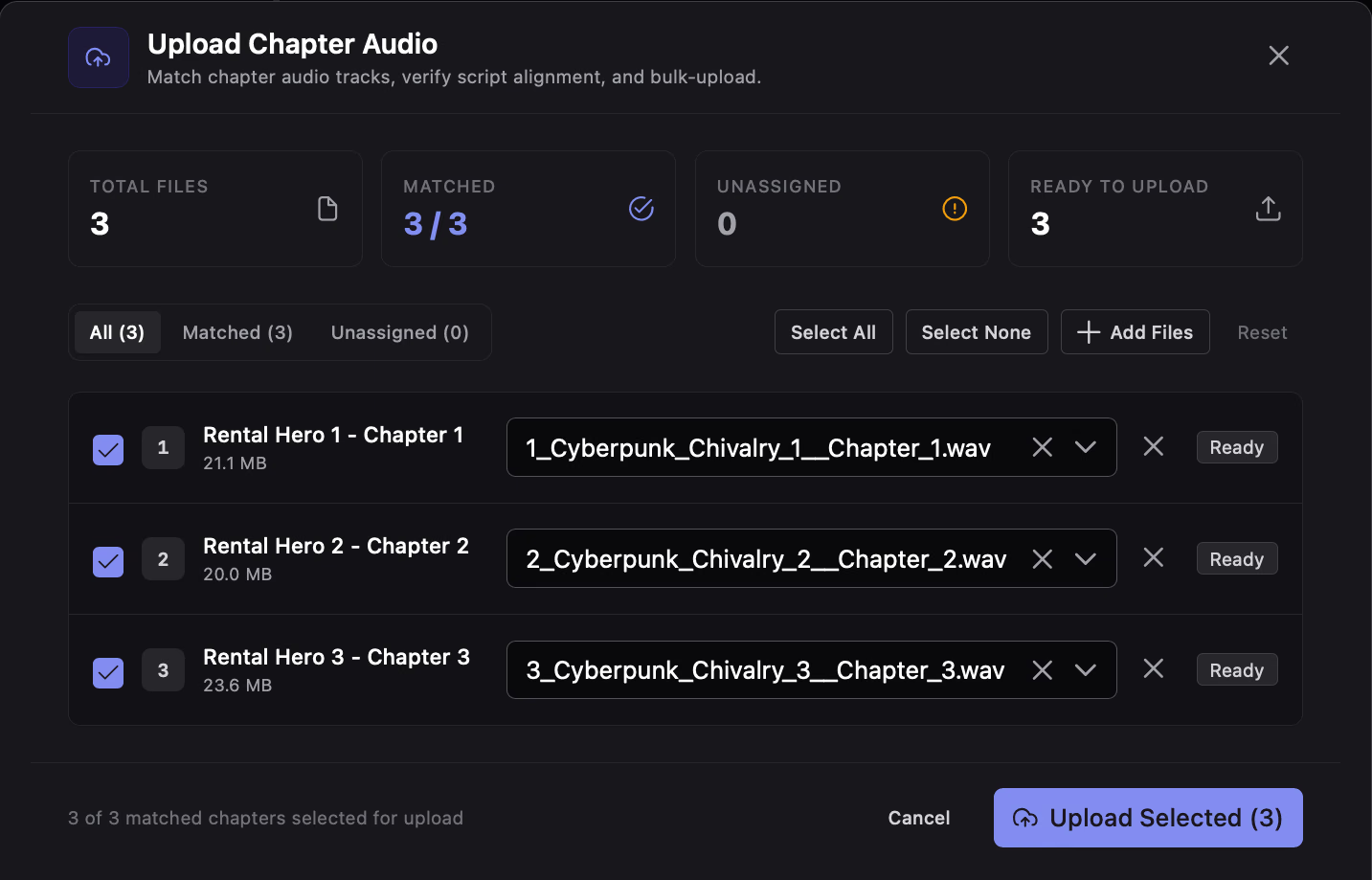
The uploader automatically normalizes your files, matches tracks to chapters, runs offline speech-to-text, and verifies whether the spoken audio aligns with your chapter scripts.
Supported Audio Formats
Section titled “Supported Audio Formats”RecapSynth supports all major uncompressed and compressed audio formats:
- WAV (
.wav) - MP3 (
.mp3) - FLAC (
.flac) - OGG (
.ogg)
During ingest, audio is automatically decoded and saved as standard 16-bit PCM WAV files on disk.
Step 1 · Add Files or Folders
Section titled “Step 1 · Add Files or Folders”In the Review top bar, click the 3-dot menu and select Upload Audio:
- Drag and Drop: Drop individual audio files or an entire folder onto the dropzone.
- Select Audio Files: Browse and multi-select audio tracks.
- Select Folder: Select a directory to ingest all contained audio files at once.
Step 2 · Smart Automatic Matching
Section titled “Step 2 · Smart Automatic Matching”RecapSynth uses a 3-pass algorithm to pair audio files with your project’s chapters:
Matches leading numbers such as 001_Chapter.wav, ch02_scene.mp3, or Track 03.wav against the chapter’s order number.
Identifies distinct numbers anywhere in the filename matching the chapter’s sequential order number.
Compares words between the filename and chapter title, skipping files whose numbers conflict with the chapter order.
Reviewing & Swapping Assignments
Section titled “Reviewing & Swapping Assignments”- Reassigning a file: Click the dropdown on any chapter row to assign a different file. If that file was already assigned elsewhere, RecapSynth swaps them cleanly.
- Unassigning: Click the × button next to the dropdown to remove an assigned file without deleting it from the pool.
- Unmatched pool: If extra files remain unassigned, an amber banner lists them at the top so you can assign them manually.
Step 3 · Upload & Batch Processing
Section titled “Step 3 · Upload & Batch Processing”- Check the boxes next to the chapters you want to upload (use Select All / Select None for bulk selection).
- Click Upload Selected (N) in the bottom-right corner.
- A progress bar tracks upload progress across chapters. Do not close the modal while an upload is in progress.
Step 4 · Script Alignment Verification
Section titled “Step 4 · Script Alignment Verification”Immediately after an audio file uploads, RecapSynth transcribes the audio using an embedded speech-recognition model (Vosk) and verifies alignment against the chapter’s script:
Status Ratings
Section titled “Status Ratings”At least 80% of scenes matched with 70%+ global token similarity. Audio and script are in sync.
At least 50% of scenes matched or 55%+ global similarity. Indicates possible timing drift, ad-libbed phrases, or minor skipped lines.
Significant mismatch between audio and script, or no script exists yet. Re-record or verify you matched the right chapter file.
Inspecting Mismatch Details
Section titled “Inspecting Mismatch Details”Click the chevron on any row with warnings to expand the report:
- Interactive Timeline Bar: Shows colored segments where timing drifted (red for high drift, amber for medium drift). Click any segment to jump to that timestamp.
- Mismatch Cards: Compares the written script excerpt against the transcribed words heard in the audio, complete with a Seek button to verify playback.
Single-Chapter Upload Alternative
Section titled “Single-Chapter Upload Alternative”To replace audio for just one chapter without opening the bulk uploader:
- In the Review studio, select the chapter tab.
- In the bottom-left audio dock, click Upload (or the trash icon if replacing an existing file).
- Drop the replacement audio file into the compact single-chapter upload dialog.