
Transition Settings
The Transitions tab controls how RecapSynth cuts or blends between comic panels in your OTIO timeline. You can curate a pool of approved transitions, shape velocity and easing curves, and let the AI select the cleanest cut based on camera momentum.
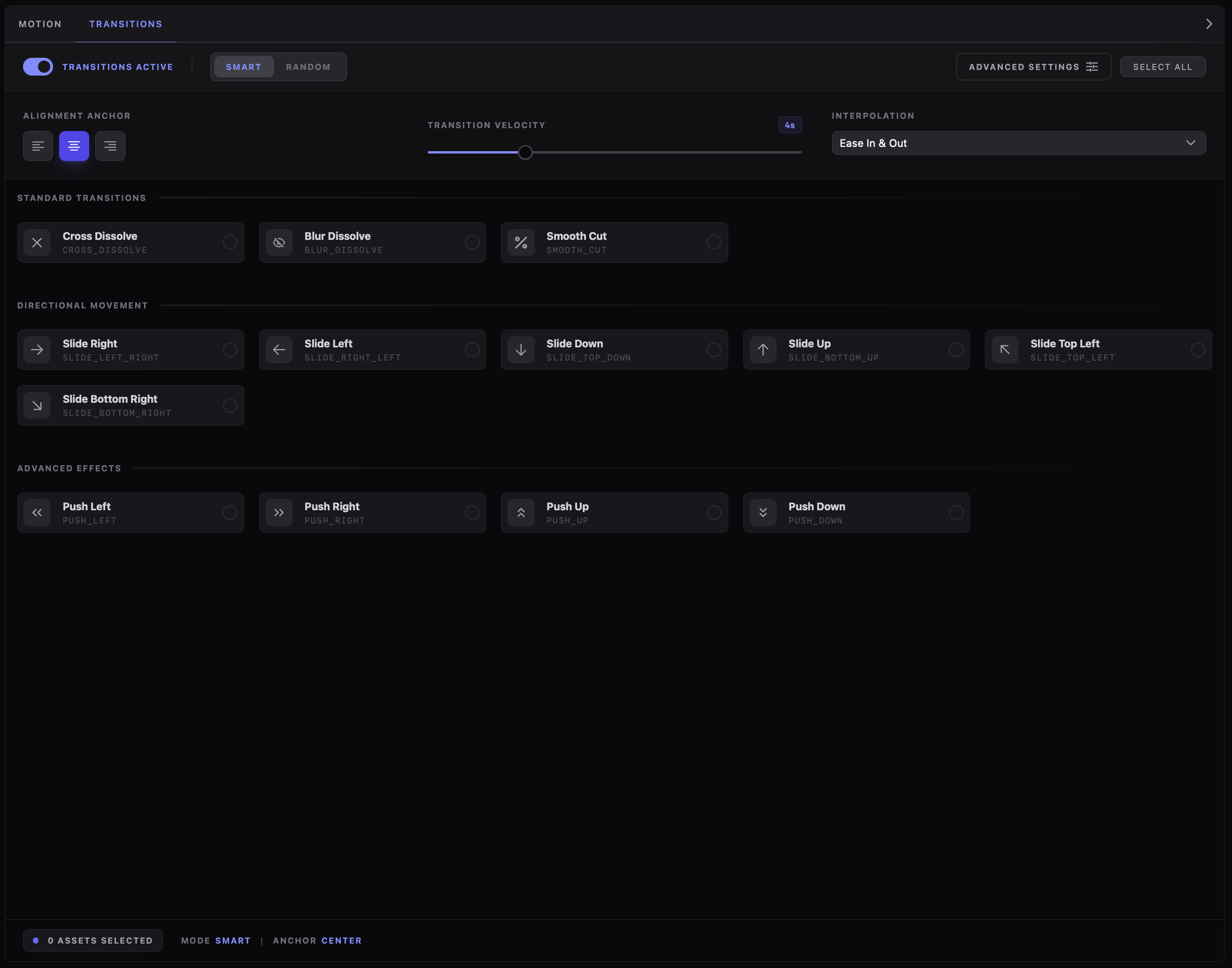
Master Toggle & Transition Modes
Section titled “Master Toggle & Transition Modes”Master Toggle
Section titled “Master Toggle”The timeline generator inserts transition objects between consecutive panel clips using the effects enabled in your active pool.
Disables all transitions so clips cut cleanly frame-to-frame. An overlay locks the card grid—click Unlock to resume editing.
Selection Intelligence
Section titled “Selection Intelligence”Analyzes camera momentum and scene boundaries before picking each transition:
- Momentum Continuity: If the outgoing panel panned right, Smart mode pairs it with a left-sliding cut to carry visual motion forward.
- Scene Boundary Awareness: At major chapter or scene breaks, it favors cinematic optical dissolves over abrupt directional slides.
Cycles freely through your enabled transition library:
- Uniform Variety: Randomly draws one effect from your currently selected transition cards at every panel boundary.
- Pool-Controlled: Limit the chaos by keeping only compatible dissolve or slide cards enabled in the grid.
Advanced Timing & Easing Controls
Section titled “Advanced Timing & Easing Controls”Click Advanced Settings in the header bar to open the timing drawer and fine-tune how transitions sit across audio cuts.

Controls where the transition sits relative to the audio cut boundary:
Start: Starts exactly at the cut and plays into the incoming clip.
Center (Default): Straddles the boundary evenly across both clips.
End: Starts early on the outgoing clip and finishes right at the cut.
Sets the target blend duration between panels.
Auto-Clamping: If a speech line or clip is shorter than your target duration, the exporter automatically shortens the transition to fit safely.
Determines acceleration across the transition curve:
Linear: Constant speed from start to finish.
Ease In: Starts slowly and snaps quickly into the incoming clip.
Ease Out: Hits quickly, then settles smoothly into rest.
Ease In & Out: Smooth acceleration and deceleration.
Available Transition Effects
Section titled “Available Transition Effects”Click any card in the grid to add or remove it from your project’s active transition pool. Active cards highlight with an accent border and checkmark badge. Use Select All / Deselect in the header to toggle the entire library at once.
- Pick your baseline dissolves so Smart Mode always has smooth options for scene and chapter shifts.
- Enable directional slides or pushes that complement your chapter’s reading direction.
- Verify your active count in the bottom telemetry bar before exporting.
Standard Optical Transitions
Section titled “Standard Optical Transitions”Subtle dissolves that blend panel imagery without shifting the frame:
cross_dissolveIndustry-standard linear optical dissolve. Ideal for pacing scene changes.
blur_dissolveApplies a Gaussian defocus pass during the cross-fade. Great for dreams, flashbacks, or power-ups.
smooth_cutOptical flow morph dissolve designed for seamless jump cuts between similar character portraits.
Directional Movement (Camera Slides)
Section titled “Directional Movement (Camera Slides)”Slides the incoming panel directly over the outgoing artwork:
Slide Right
slide_left_rightCamera slides horizontally to the right.
Slide Left
slide_right_leftCamera slides horizontally to the left.
Slide Down
slide_top_downTilts down into the incoming panel.
Slide Up
slide_bottom_upTilts upward into the incoming panel.
Slide Top Left
slide_top_leftDiagonal slide toward the upper-left corner.
Slide Bottom Right
slide_bottom_rightDiagonal slide toward the bottom-right corner.
Advanced Effects (Pushes)
Section titled “Advanced Effects (Pushes)”Pushes the outgoing panel out of frame as the incoming panel enters:
Push Left
push_leftPushes the old clip offscreen to the left.
Push Right
push_rightPushes the old clip offscreen to the right.
Push Up
push_upPushes the old clip upward out of frame.
Push Down
push_downPushes the old clip downward out of frame.
Layered Multi-Panel Safety Rule
Section titled “Layered Multi-Panel Safety Rule”Footer Telemetry
Section titled “Footer Telemetry”The bottom bar summarizes your active transition configuration at a glance:
4 Assets Selected
Displays the total count of active transition cards in your pool (e.g., 4 Assets Selected).
Indicates whether smart momentum matching or random selection is running.
Confirms the active cut alignment point (start, center, or end).