
Subscription Plans
Settings → Subscription Plans is where you can compare plans, check your credit balance and renewal date, and open the Billing Portal. You can also jump straight here by selecting View plans inside the Credits popover in the editor.
Your Subscription Status
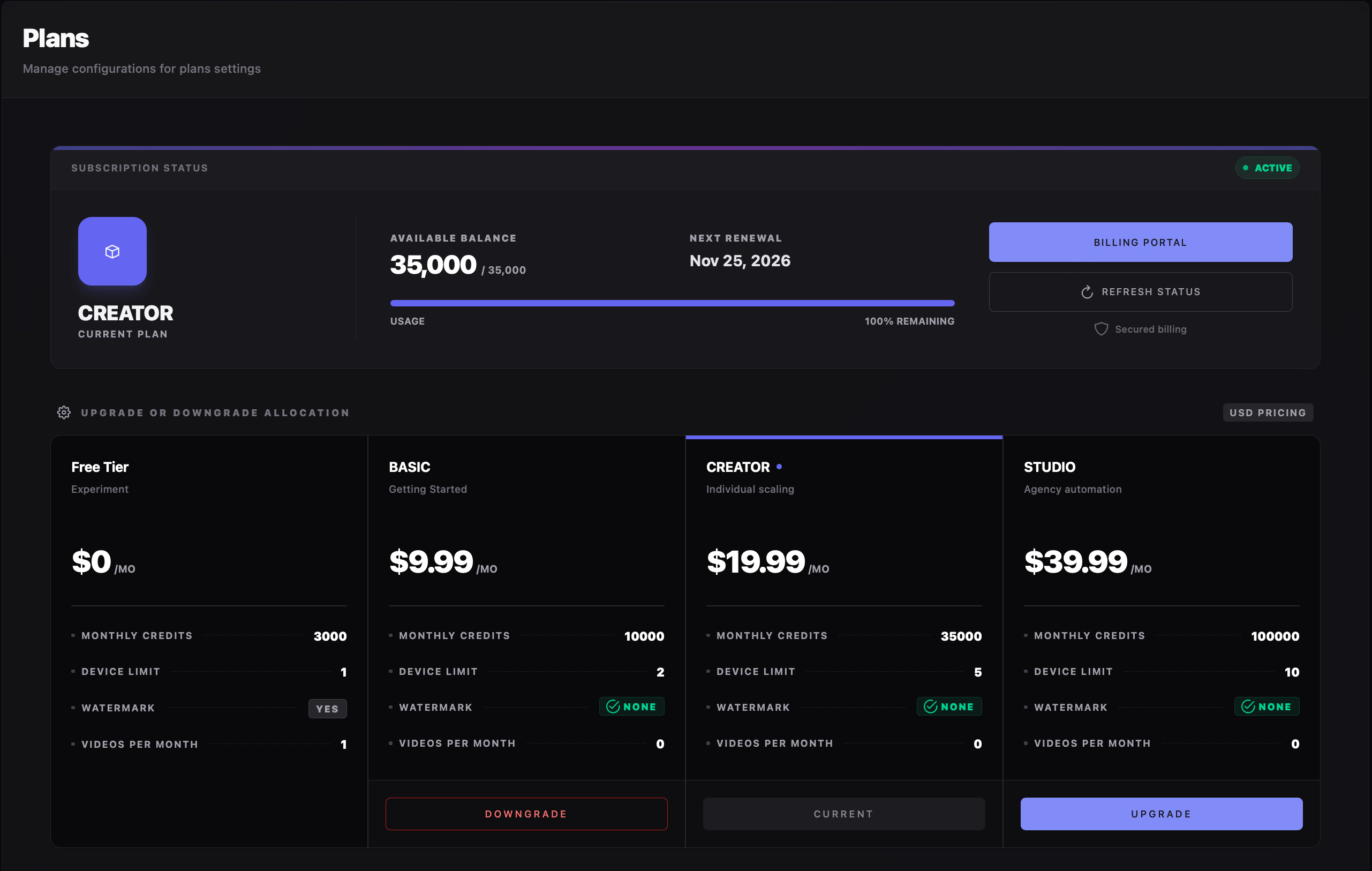
Section titled “Your Subscription Status”For a paid plan, the subscription dashboard surfaces six key status indicators and billing controls:
Displays the name of your active subscription tier.
Shows the credits currently available in your account.
The recurring credit allowance associated with your plan.
The upcoming billing date provided by the payment service.
Opens the secure page where you can manage payment details and billing.
Syncs and refreshes the subscription information shown in the app.
Your available balance can be lower than your monthly allowance after you use credits. Check the Credits and Billing guide to understand credit usage.
Compare Plans
Section titled “Compare Plans”The plan list shows the available subscription options, their prices, monthly credit allowances, device limits, and other listed features.
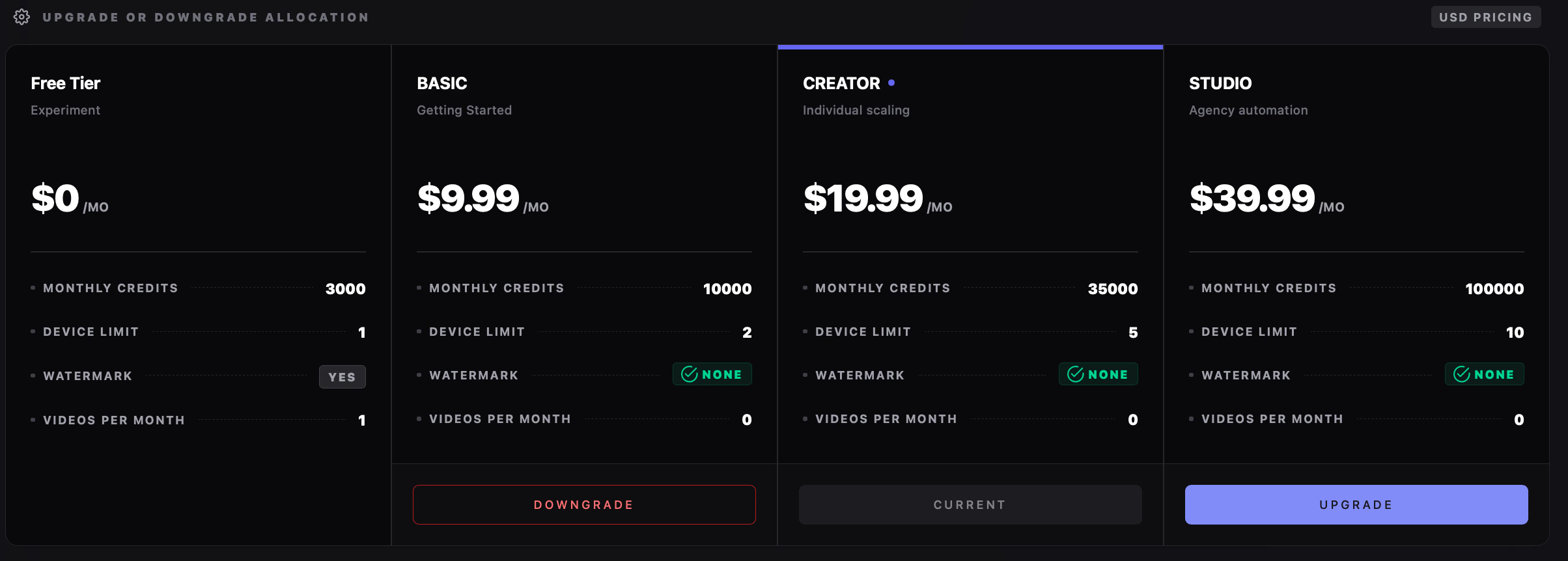
Includes a limited monthly credit allowance and a one-device limit. Free-tier exports include a RecapSynth watermark.
Include the monthly credit allowance, device limit, and additional features shown on each plan card.
Identifies the plan currently associated with your subscription.
Starts a change to another available plan.
Plan prices and included features are displayed in the app. They may change, so use the plan comparison page for the current details.
Starting a Subscription
Section titled “Starting a Subscription”If you do not have an active paid subscription:
- Open Settings → Subscription Plans.
- Choose the plan you want.
- Select Get Started.
- Complete payment on the secure checkout page.
After the payment service confirms the subscription, RecapSynth updates your plan and credit allowance.
Changing an Existing Plan
Section titled “Changing an Existing Plan”If you already have an active subscription, choosing another plan starts an immediate plan change.
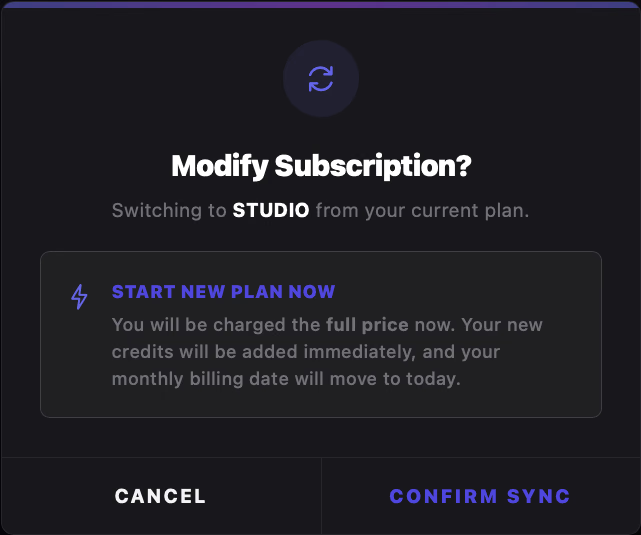
If you do not want to change plans immediately, use the Billing Portal to review the subscription options available there.
Managing or Cancelling Your Subscription
Section titled “Managing or Cancelling Your Subscription”Select Billing Portal to open the secure payment-service page associated with your account. Depending on your subscription state, RecapSynth handles billing events as follows:
Use the secure Billing Portal to update available billing details, review past invoices, and manage cancellation.
RecapSynth records the subscription as cancelled, keeps your existing credit balance, and retains paid-plan access until the billing period ends. Cancellation does not automatically top up your balance.
If a payment fails and your subscription is placed on hold, review your payment details in the Billing Portal. You cannot start another checkout or switch plans from the app while on hold.
When a Subscription Ends
Section titled “When a Subscription Ends”When the payment service confirms that a subscription has expired, RecapSynth updates your account status based on whether another active subscription exists:
Paid subscription credits are cleared and your account automatically returns to the Free Tier.
Your remaining valid subscription keeps both its plan access and its credit balance intact.