
Updating
This guide explains how RecapSynth checks for new releases, what options appear in the Update Available dialog, and how to install a new version.
Automatic Update Checks
Section titled “Automatic Update Checks”RecapSynth checks for new releases automatically on startup and periodically while running. You can also check for updates manually anytime from Settings → About.
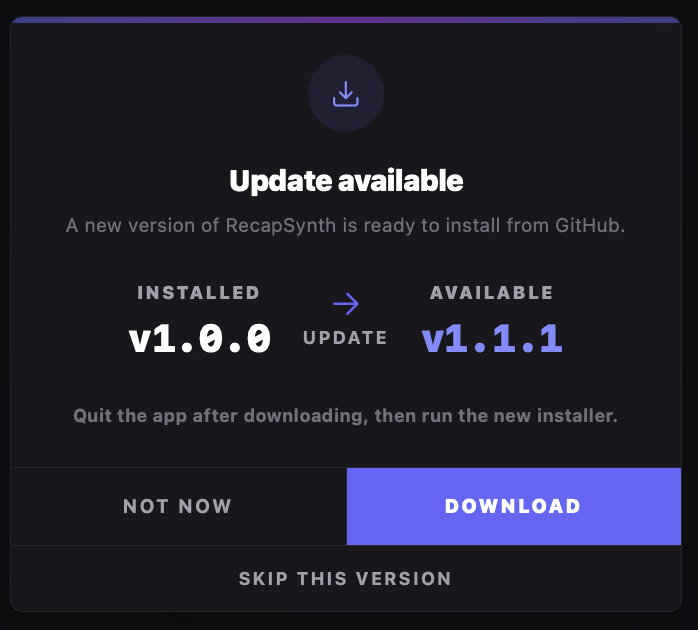
When a newer version is available, an Update Available dialog appears.
What the Update Dialog Shows
Section titled “What the Update Dialog Shows”Displays your current application version (for example, v1.1.1).
Displays the newer release version ready to download from GitHub.
“A new version of RecapSynth is ready to install from GitHub.”
“Quit the app after downloading, then run the new installer.”
Dialog Actions
Section titled “Dialog Actions”| Action | Behavior |
|---|---|
| Download | Opens the download for the newest RecapSynth installer. |
| Not Now | Dismisses the prompt temporarily—you will be reminded later. |
| Skip This Version | Permanently ignores this specific release so you aren’t prompted about it again. |
Installing an Update
Section titled “Installing an Update”1
Click Download in the Update Available dialog to fetch the latest installer (
.dmgfor macOS or.msifor Windows).2
Once the download finishes, quit RecapSynth completely before running the installer.
3
Open the new installer and follow the setup prompts to finish updating.