
Converge Focus
Simultaneously zooms into high-priority action panels while stabilizing supporting reaction and dialogue panels.
The Motion tab controls camera movement applied to static comic panels in your OTIO timeline. Instead of leaving artwork frozen on screen while narration plays, RecapSynth applies subtle panning, zooming, and 3D perspective tilts that follow the natural reading flow of the manhwa.
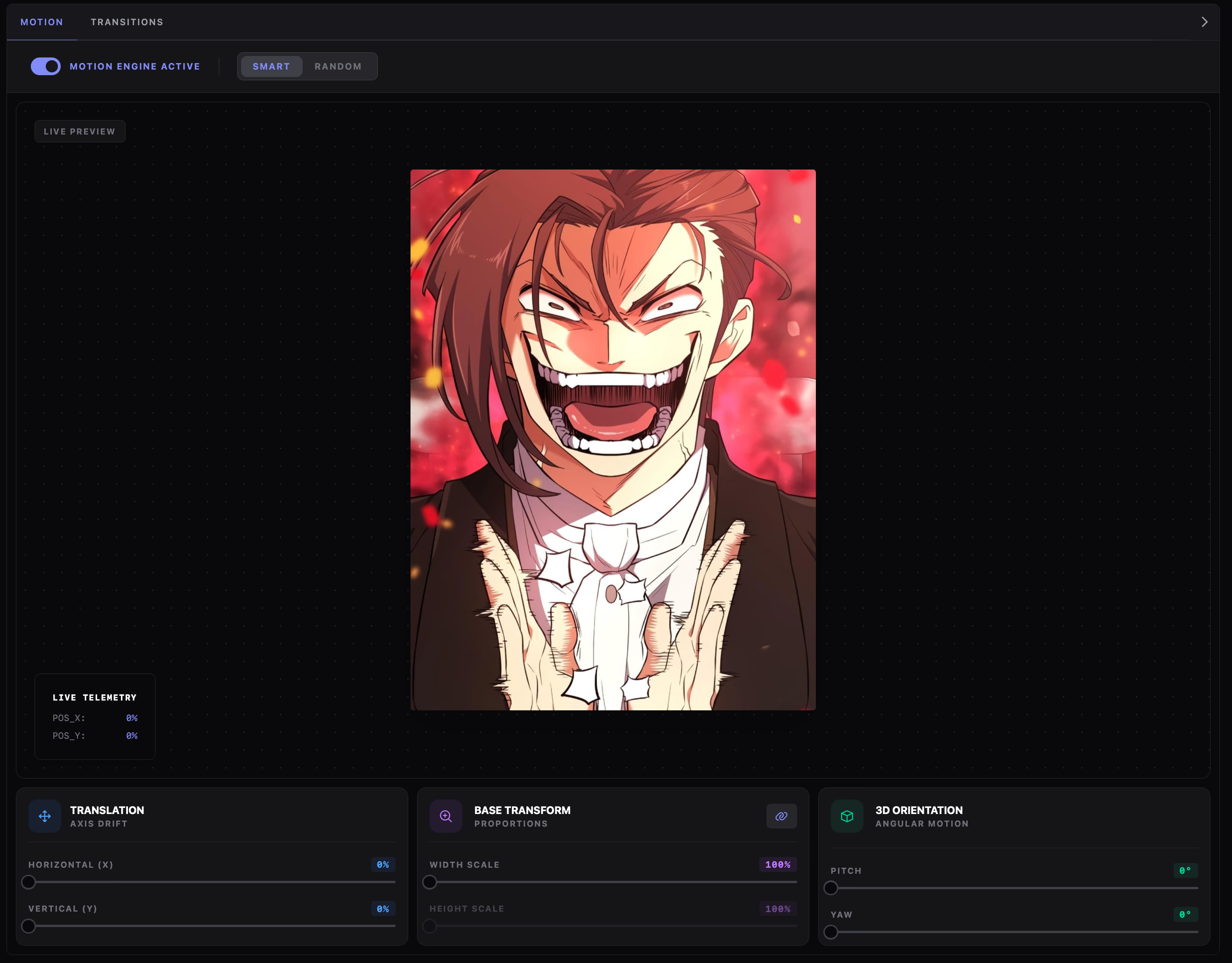
Use the top control bar to turn camera animation on or off and choose how RecapSynth generates camera trajectories.
Camera movement is calculated per panel and written directly into your export as Resolve-compatible transform curves.
Pauses the motion engine. The preview shows a Preview Paused badge, controls are dimmed, and all panel clips export with static, centered framing.
Uses an embedded visual saliency model to locate the primary character face or action focal point on each panel:
Applies varied motion families across consecutive clips without saliency tracking:
zoom, pan, tilt, and yaw movements between clips.The center stage provides a real-time 3D simulation of your active settings before you export:
Animates a sample panel using the active motion style—animate-organic for Smart mode, or animate-chaotic for Random mode.
POS_X / POS_Y
The floating status box at the bottom left streams real-time POS_X and POS_Y drift coordinates as the simulated camera moves across the panel.
Three dedicated control cards sit below the preview stage to fine-tune movement intensity, zoom headroom, and 2.5D depth.

Controls how far the virtual camera glides across the panel during each clip.
0% – 100%Maximum horizontal pan distance. Smart mode sweeps wide landscape panels across horizontal action.
0% – 100%Maximum vertical pan distance. Tall webtoon strips pan smoothly down character reveals.
Sets baseline crop scale to create pan headroom without exposing black edges.
Click the link icon on the card header to mirror Width scale changes automatically to Height.
100% – 200%100% fits natively to the canvas; higher values punch into artwork. Unlink to adjust axes independently.
Adds subtle perspective tilt so flat comic panels feel like 2.5D dimensional shots.
0° – 30°Tilts the camera forward or backward along the horizontal axis.
0° – 30°Rotates the camera left or right along the vertical axis.
100% until the live preview stage pans smoothly without exposing edges.5° – 12°) for dramatic action beats, or leave them at 0° for clean editorial reading.When exporting in Layered Mode, scenes with multiple panels use an intelligent choreography coordinator rather than animating each panel in isolation:
Converge Focus
Simultaneously zooms into high-priority action panels while stabilizing supporting reaction and dialogue panels.
Reading Flow
Alternates pan directions (for example, panning down on panel 1 and sliding right on panel 2) to guide viewer eyes in natural reading order.
Depth Spread
Tilts adjacent panels outward along the Yaw axis, creating a subtle curved comic-book layout across the screen.
Slot Boundaries
Keyframes are automatically clamped inside each panel’s layout slot so artwork never drifts across gutters into neighboring panels.
Use these baseline recipes in the Motion tab depending on the pacing and visual layout of your chapter:
| Style | Mode | Translation | Base Transform | 3D Orientation | Best Used For |
|---|---|---|---|---|---|
| Subtle Documentary | Smart |
20% |
105% (Linked) |
0° / 0° |
Dialogue-heavy chapters and slow story exposition. |
| Cinematic Action | Smart |
45% |
120% (Linked) |
Pitch 8° · Yaw 10° |
High-energy battle sequences and dramatic reveals. |
| Webtoon Scroll | Smart |
X 10% · Y 60% |
115% |
0° / 0° |
Vertical manhwa panels showing full-body character art. |
| Static Broadcast | Standby |
— |
100% |
— |
Pure panel-by-panel review without camera movement. |