
Review overview
The Review studio is your quality-control hub. After the Process step completes, you inspect and polish everything generated—reading narration lines, checking video crop framing, listening to voiceover audio, and verifying subtitle synchronization.
Top Navigation Bar
Section titled “Top Navigation Bar”The header keeps your project organized across multiple chapters:
- Chapter Tabs (
#1,#2…): Click any tab to switch chapters instantly. The active chapter is highlighted in primary color. - Top Actions Menu (3 dots):
- Upload Audio: Opens the bulk audio uploader to match custom recordings with chapters.
- Export Script: Opens the export dialog to save scripts as TXT, Markdown, JSON, PDF, HTML, or CSV.
- Clear all review data: Removes scene scripts, crop previews, and audio tracks for all chapters in the project. Annotations and page images in Write remain intact.
Dual-Pane Layout
Section titled “Dual-Pane Layout”The main workspace divides visual media and narrative text into two synchronized panels:
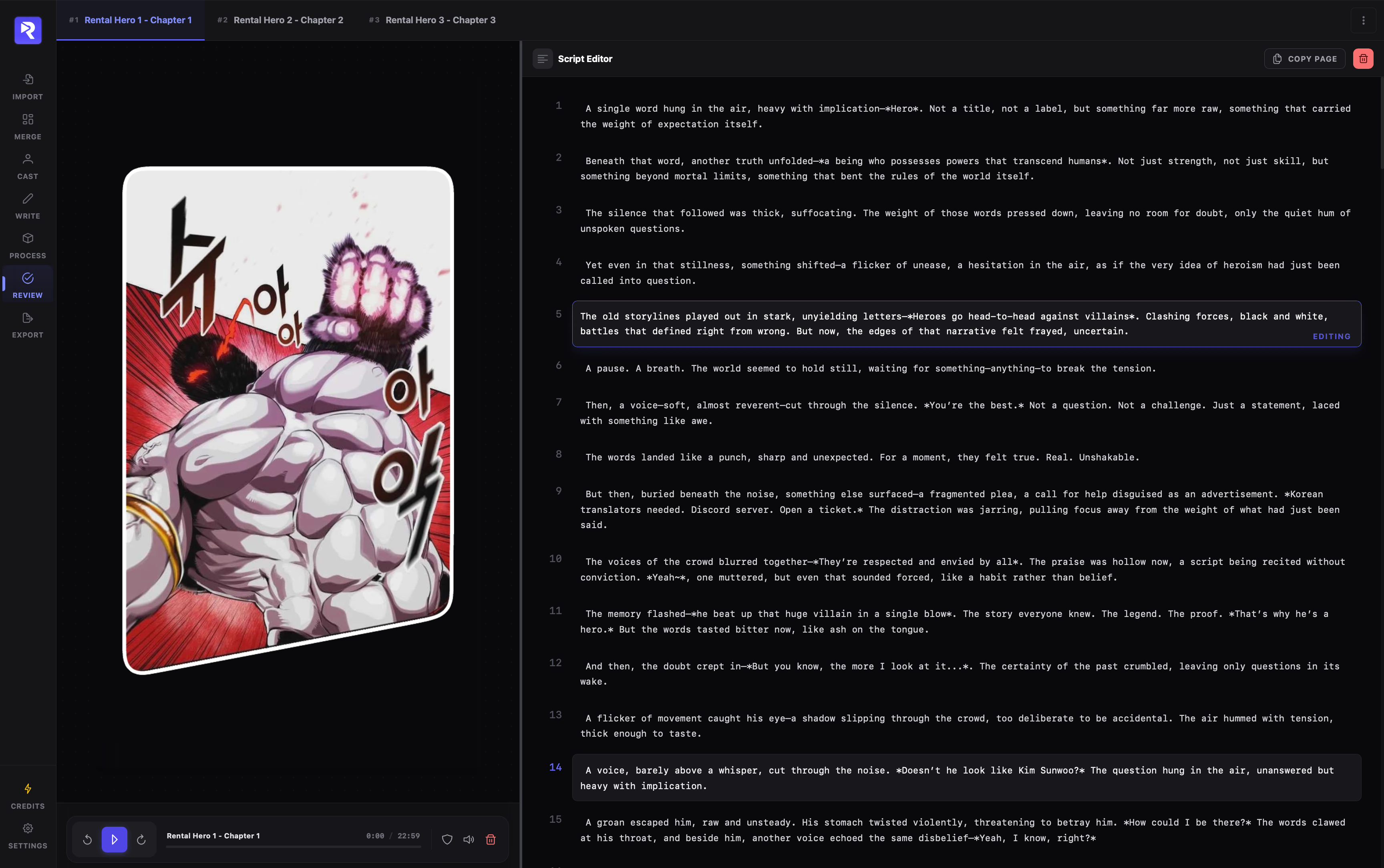
Displays the rendered panel crop(s) linked to the active script line. If a scene covers multiple panels (common in Condensed mode), a responsive grid displays all associated crops. The bottom dock houses the audio capsule player.
Lists every narration line in chronological scene order. Click any line to edit its text with automatic background saving, or copy the entire chapter’s prose with one click.
Editing Narration Lines
Section titled “Editing Narration Lines”
- Select a line: Click any numbered script card. The left panel immediately updates to display the corresponding panel crop images.
- Inline editing: The card expands into an auto-resizing textarea with an amber Editing indicator.
- Autosave: Edits save automatically to the database 1 second after you stop typing—no manual save button required.
- Copy full script: Click Copy page in the top-right toolbar to copy the entire chapter’s narration to your clipboard as clean prose. The button displays Copied with a checkmark for 2 seconds.
Audio Capsule Player
Section titled “Audio Capsule Player”At the bottom of the left panel, the audio capsule player handles playback, scrubbing, and alignment checks:

- Playback Controls: Play, pause, or skip forward and backward by 10 seconds.
- Scrubber Bar: Drag the slider to seek to any point in the chapter. Displays formatted elapsed and total time (e.g.,
1:24 / 3:45). - Alignment Badge: Shows the verification rating between the audio track and your script text:
- Pass (Emerald): Script text and spoken audio match closely.
- Review (Amber): Minor wording differences or slight drift detected.
- Fail (Red): Significant mismatch or missing transcription.
- Check Alignment (Shield icon): Opens the inline verification panel to inspect timestamped mismatch regions and jump directly to drift points.
- Delete Audio (Trash icon): Removes the chapter’s voiceover
.wavand.srtfiles from disk and database without touching your script lines.
Empty States & Missing Audio
Section titled “Empty States & Missing Audio”If a chapter does not have audio generated yet, the audio capsule displays No audio source with two quick actions:
Opens the single-chapter uploader to attach your own voice recording (WAV, MP3, FLAC, or OGG).
Navigates back to the Process studio with your chapter selected so you can generate AI voiceover using a local or cloud TTS model.