
Create Account
A RecapSynth account is required to access the software. Once signed in, you can use free features within your credit limit. Creating an account is free and takes just a few minutes.
Before You Begin
Section titled “Before You Begin”Make sure you have the following ready before registering:
Accessible Email
A valid email inbox you can access right away to verify your account, sign in, and reset your password.
Strong Password
A password that meets RecapSynth’s length and character requirements.
Terms & Privacy
A moment to review and accept the Terms and Privacy Policy.
Opening the Registration Screen
Section titled “Opening the Registration Screen”1
Launch RecapSynth. If you need help getting started, see Installation.
2
If you aren’t already signed in, RecapSynth opens the account screen automatically.
3
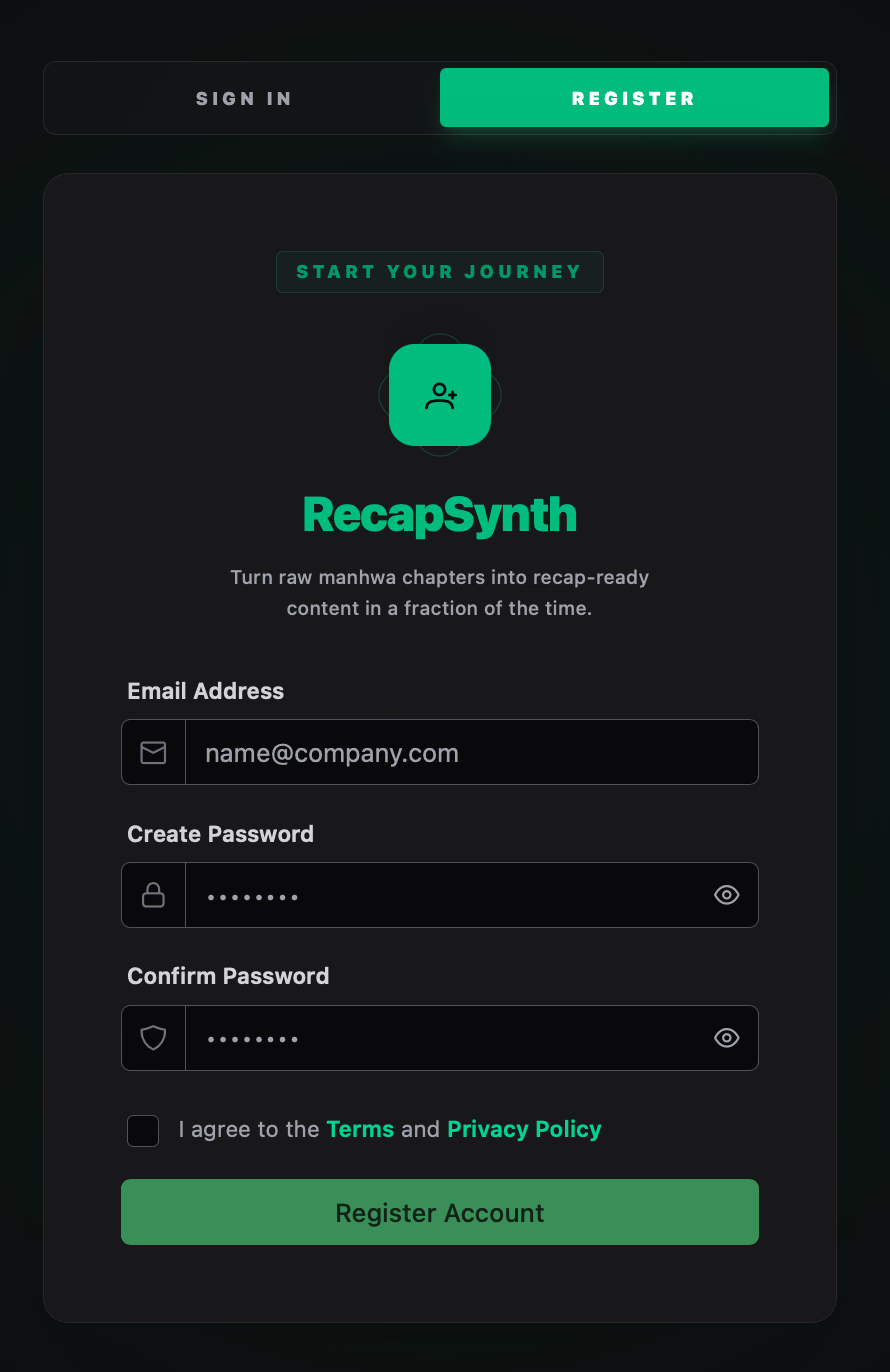
At the top of the screen, select the Register tab in the Sign In / Register switcher before continuing.
Completing the Registration Form
Section titled “Completing the Registration Form”Enter the required details in each field below.
1. Email Address
Section titled “1. Email Address”Enter the email address you want to associate with your RecapSynth account (for example, name@company.com).
If the email format is invalid, RecapSynth displays:
“Please enter a valid email address.”
Check the spelling carefully. A correctly formatted address can still belong to a misspelled domain or an inbox you cannot access.
2. Create Password
Section titled “2. Create Password”Choose a password that meets all of the following requirements (displayed automatically when you select the password field):
- At least one lowercase letter and one uppercase letter
- At least one number (
0–9) - A minimum length of 8 characters
Use the eye icon inside the field to show or hide your password while typing.
3. Confirm Password
Section titled “3. Confirm Password”Re-enter the exact same password to confirm it. If the entries don’t match, RecapSynth displays:
“Passwords do not match.”
4. Accept the Terms and Privacy Policy
Section titled “4. Accept the Terms and Privacy Policy”Select the checkbox labeled:
“I agree to the Terms and Privacy Policy”
The Terms and Privacy Policy labels are clickable links that open the official documents in your browser—review both before accepting.
Submitting & Verifying Your Account
Section titled “Submitting & Verifying Your Account”Once you’ve completed the form:
1
Review your email address and password for accuracy.
2
Confirm that you’ve accepted the Terms and Privacy Policy.
3
Select Register Account. While processing, the button shows a loading indicator and form fields are temporarily disabled.
Verify Your Email & Sign In
Section titled “Verify Your Email & Sign In”After submitting your registration, follow these steps to activate your account and log in:
1
Once registration succeeds, RecapSynth displays a confirmation notification and sends a verification link to your email address.
2
Open your email inbox to find the verification message. If you don’t see it, check your Spam (or Junk) folder.
3
Open the email and click Verify to confirm your email address.
4
After verification, return to the Sign In page in the RecapSynth app and sign in using your email address and the password you created.
If Registration Fails
Section titled “If Registration Fails”If RecapSynth displays an error notification, check these common causes:
- Email already registered — You already have an account with this address. Switch to the Sign In tab or see Signing In & Password Reset.
- Password requirements not met — Confirm your password has uppercase/lowercase letters, a number, and at least 8 characters.
- Network connection issue — Verify your internet connection and try submitting again.
After Registration
Section titled “After Registration”Once your email is verified and you’ve signed in, RecapSynth opens the Home Screen, where you can:
- Create New Project
- Open Projects
- Open Settings