
Characters and Scripts
Every bounding box on the page corresponds to a Script Card in the right panel. These cards contain the text that will be synthesized into voiceover during the Process stage.
Speech bubbles get a Character assignment so the recap knows who is talking, while art panels contain narrative action descriptions.
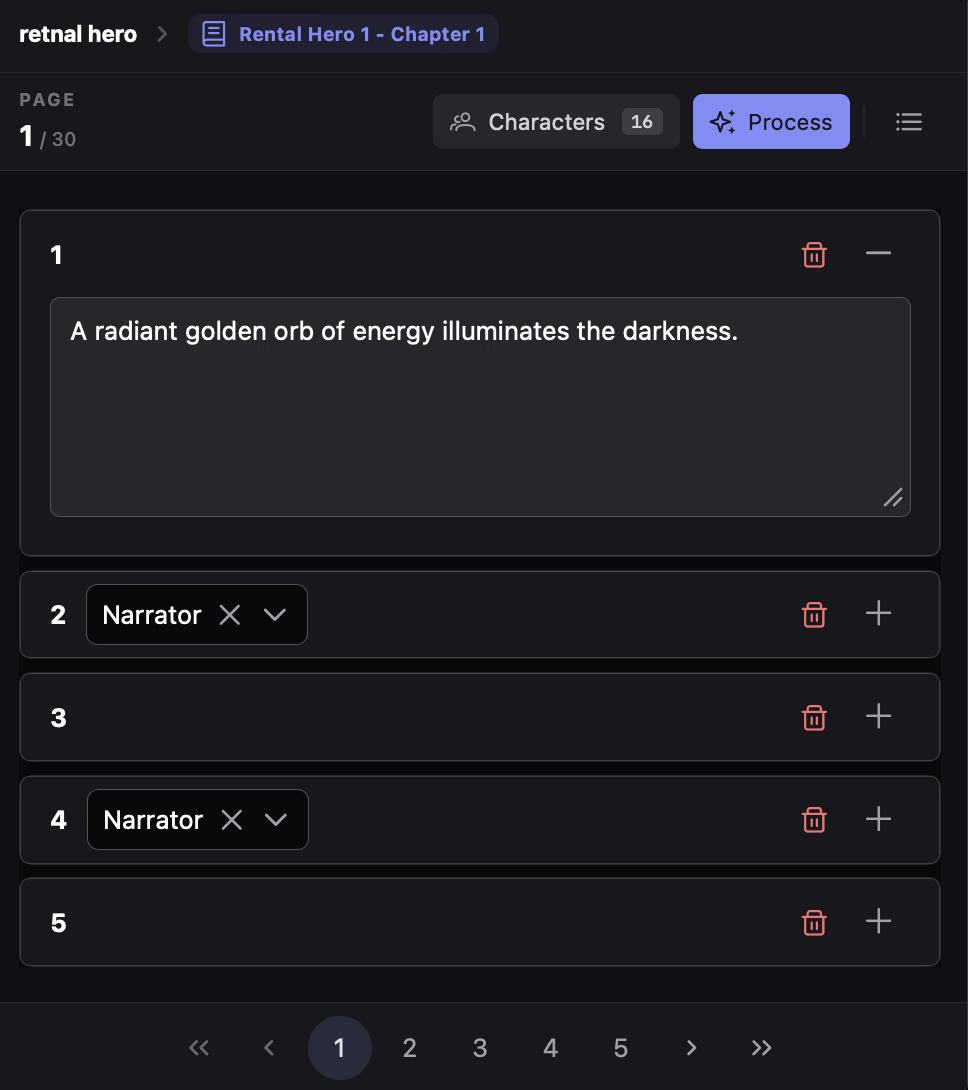
Anatomy of a Script Card
Section titled “Anatomy of a Script Card”Cards are sorted in reading order from top to bottom based on their position on the canvas:
- Order Number Badge: The sequential number of the element on this page (
1,2,3…). - Character Dropdown (Speech lines only): Assigns the speaker for this line. Displays the character’s name and is searchable.
- Trash Icon: Deletes the script element and removes its bounding box from the canvas.
- Textarea: Contains the dialogue line or panel action description. Text edits autosave automatically with debounce.
Has a character selector dropdown. When you run OCR, the bubble’s transcribed text fills this textarea. You can edit errors, punctuation, or spelling freely.
Has no character dropdown. Contains descriptive narration of what happens in the scene. If you ran Script Assignment in Cast, Vision AI automatically fills this description.
Assigning Characters to Dialogue
Section titled “Assigning Characters to Dialogue”1. The Searchable Dropdown
Section titled “1. The Searchable Dropdown”Click the Char dropdown on any speech card and select a character from the list. Type in the filter field to search long rosters instantly. To clear an assignment, click the clear icon on the dropdown.
2. High-Speed Keyboard Tagging
Section titled “2. High-Speed Keyboard Tagging”When reviewing dialogue across long chapters, you can tag characters without leaving your keyboard:
Instantly applies the most recently selected character to the active speech card.
Opens and focuses the character selection dropdown so you can search and press Enter.
Removes the assigned speaker from the active card, returning it to an unassigned state.
Character Management
Section titled “Character Management”Click Characters in the top toolbar (or press Alt+N) to open the Character Manager.
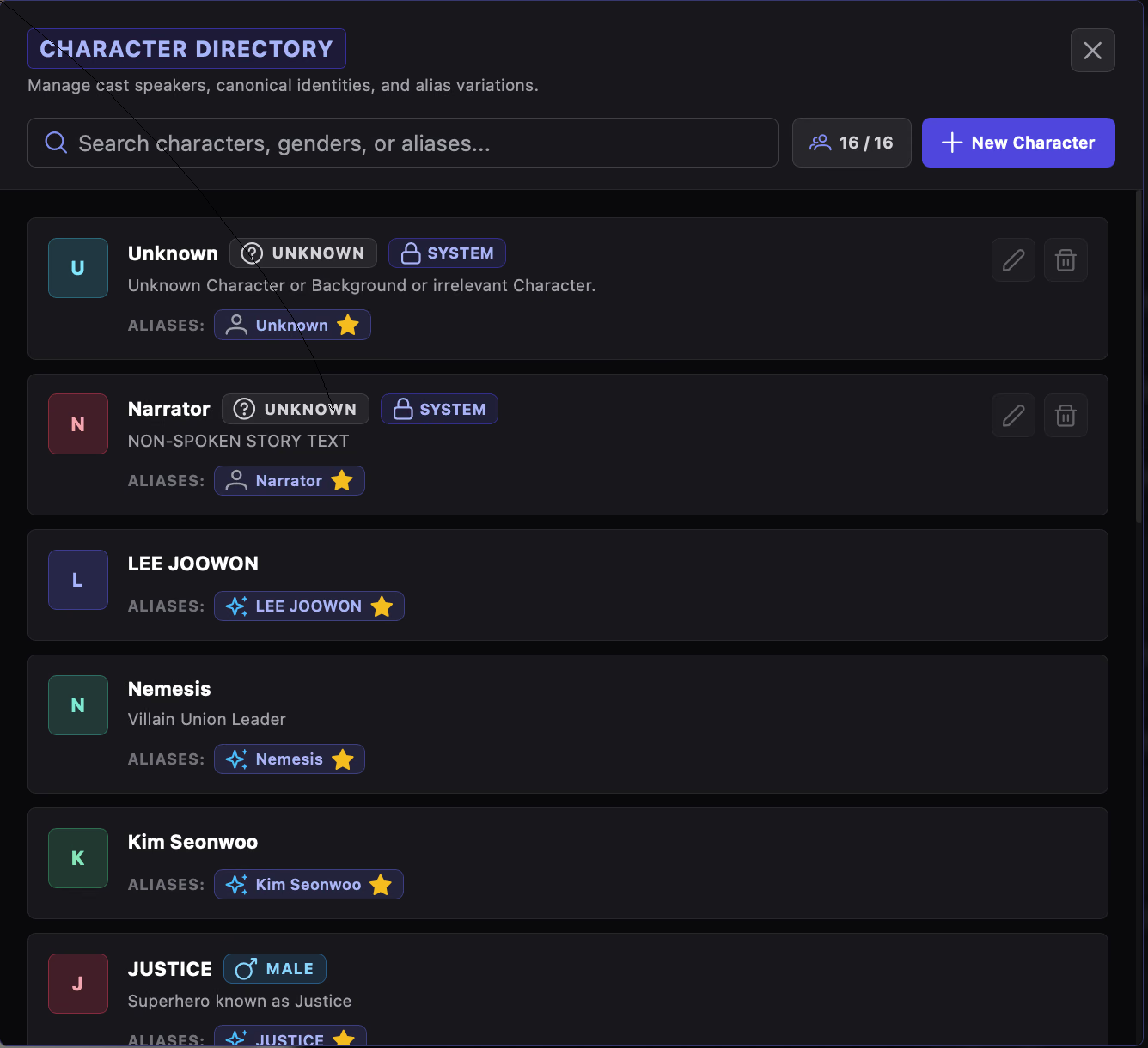
- Name (Required): The canonical name of the character (e.g., Jinwoo, Sarah).
- Gender: Quick-select Male, Female, Unknown, or enter a custom value. Used to select appropriate TTS voices during audio generation.
- Description: Character notes regarding age, personality, or speaking tone. These notes guide the AI rewrite models during the Process step.
- Delete Protection: Deleting a character from the manager removes them from all dropdowns and unassigns any script lines currently linked to them.