
Signing In & Password Reset
This guide walks you through signing in to RecapSynth, handling failed login attempts, resetting a forgotten password through recapsynth.com, and signing out.
Signing In
Section titled “Signing In”When the Sign-In Screen Appears
Section titled “When the Sign-In Screen Appears”RecapSynth routes you to the sign-in screen automatically whenever:
How to Sign In
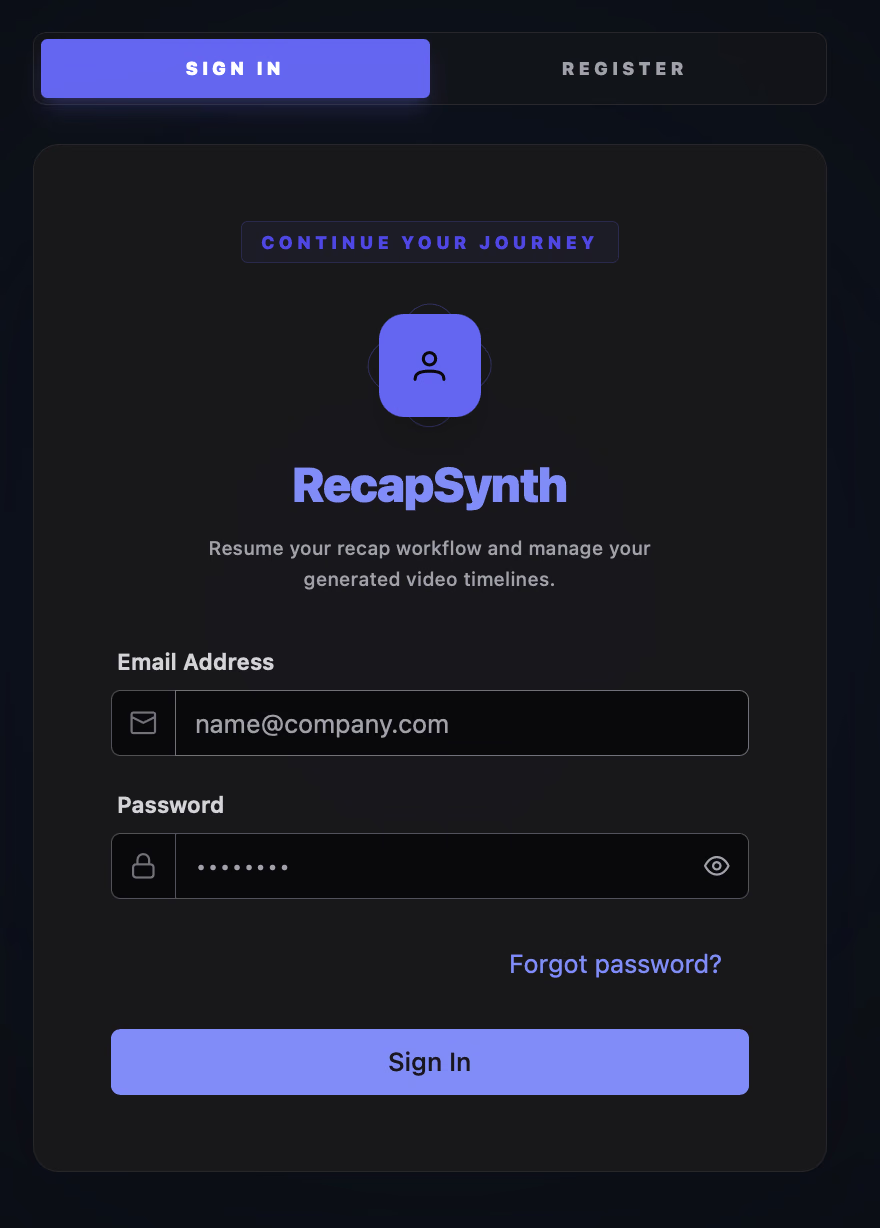
Section titled “How to Sign In”Make sure the Sign In tab is selected at the top (not Register). You’ll see the Continue Your Journey badge, the RecapSynth heading, and the subtitle: “Resume your recap workflow and manage your generated video timelines.”
1
Confirm the Sign In tab is active at the top of the card.
2
Enter your Email Address and Password (click the eye icon to reveal your password if needed).
3
Click Sign In to enter your workspace.
If Sign In Fails
Section titled “If Sign In Fails”When your credentials don’t match, RecapSynth shows a red Login Failed notification (“Invalid email or password.”):
- Verify your email has no typos or extra spaces.
- Make sure Caps Lock is turned off.
- Confirm you’re using the password from registration (or your latest password reset).
Forgot Password
Section titled “Forgot Password”If you forget your password, you can request a reset link from the app and set a new password in your browser on recapsynth.com.
Visual Reset Overview
Section titled “Visual Reset Overview”Click Forgot password? and submit your email.
Check your inbox (and Spam folder) for the link.
Set your new password on recapsynth.com.
Return to RecapSynth and log in with your new password.
1. Request a Reset Link in RecapSynth
Section titled “1. Request a Reset Link in RecapSynth”On the Sign In tab, click Forgot password? below the password field to open the Forgot Password? page (“No worries, we’ll send you reset instructions.”). Enter your registered Email Address and click Send Reset Link.
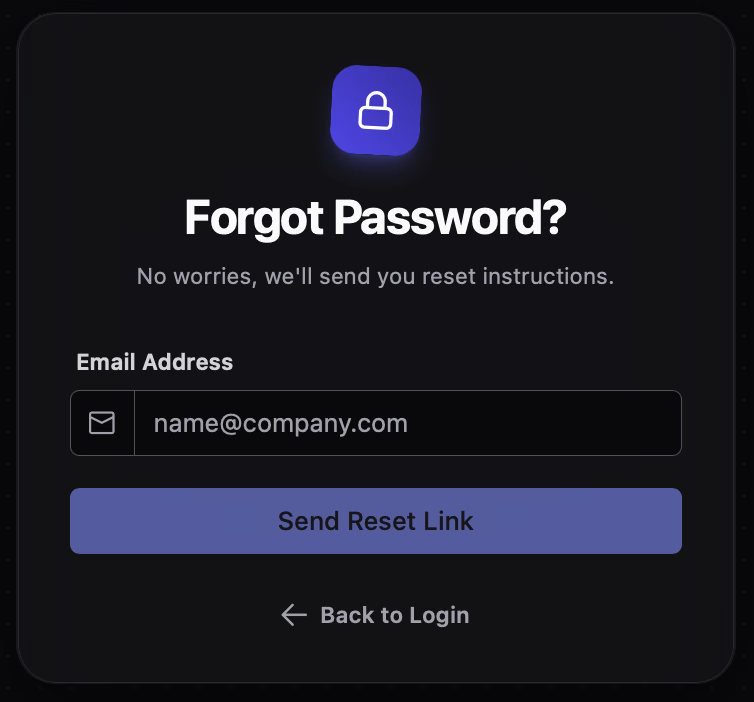
On success, RecapSynth shows a Request Sent notification (“A reset link has been sent to your email.”).
(If you see a Request Failed notification instead, double-check your email spelling and internet connection, then try again.)
2. Set Your New Password on recapsynth.com
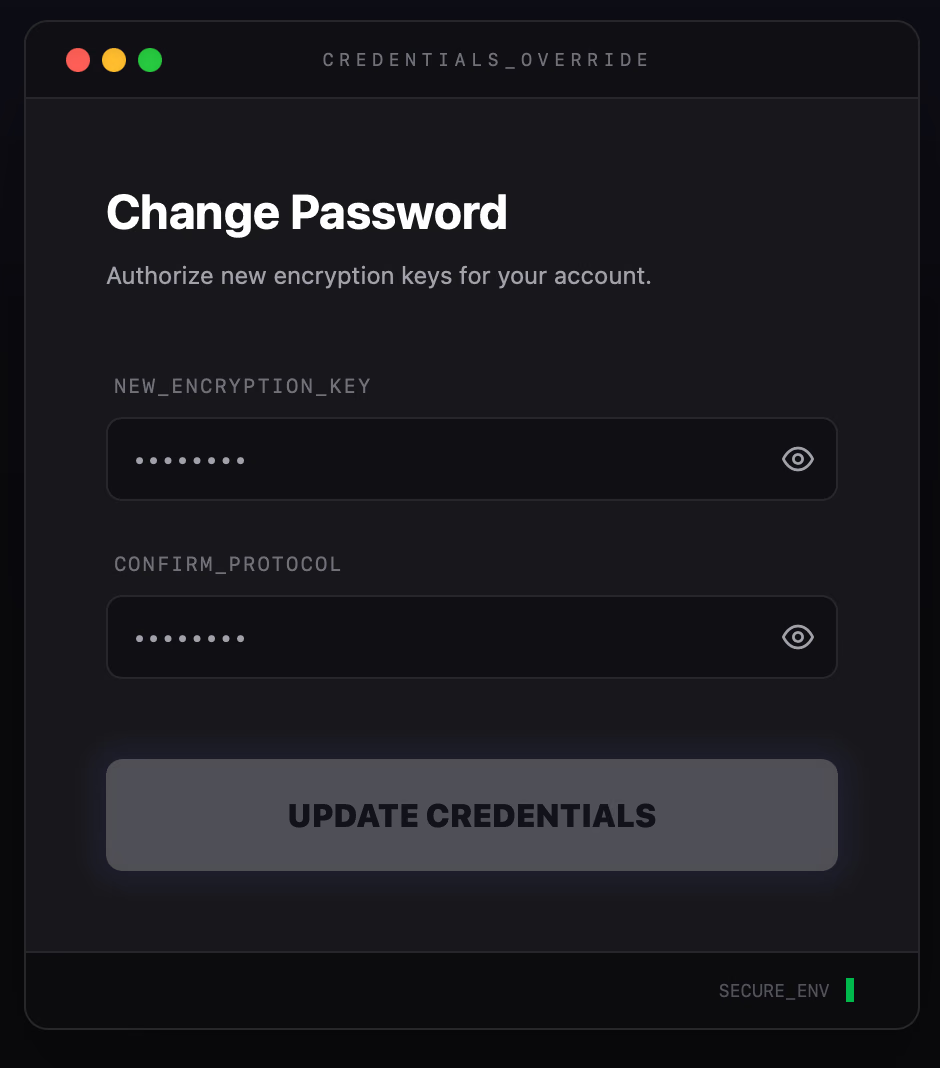
Section titled “2. Set Your New Password on recapsynth.com”Open your email inbox (and check your Spam or Junk folder if you don’t see it right away) and click the reset link. Your browser will open recapsynth.com, where you can enter and confirm your new password:
3. Return to the App & Sign In
Section titled “3. Return to the App & Sign In”Once your password is updated in the browser:
- Switch back to the RecapSynth desktop app.
- Click Back to Login at the bottom of the Forgot Password page if you are still on that screen.
- Make sure the Sign In tab is selected and log in using your new password.
Signing Out
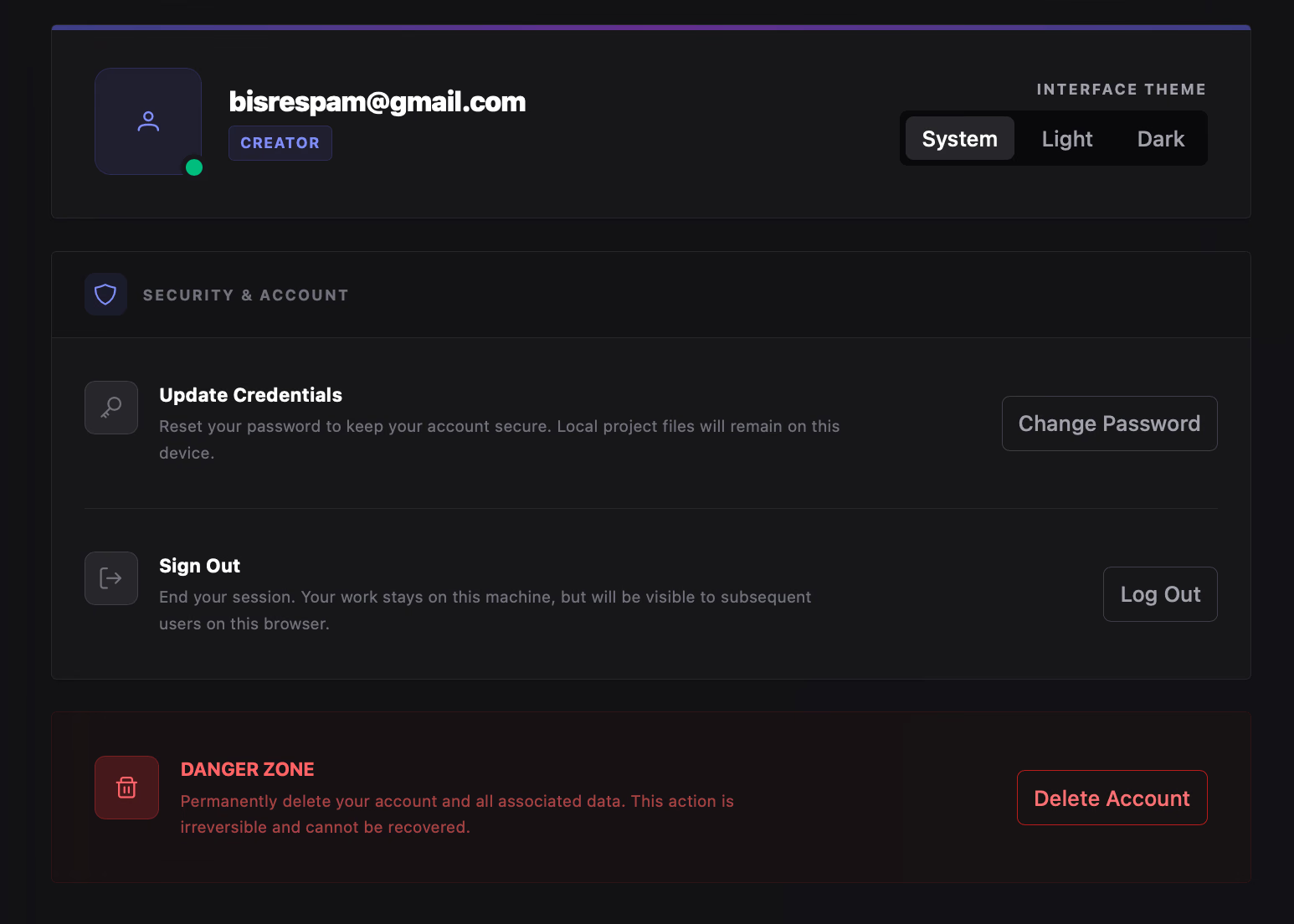
Section titled “Signing Out”You can sign out anytime from Settings → General:
1
Open Settings from the home screen or the editor sidebar.
2
Select General and click Log Out / Sign Out.
You’ll need to sign in again the next time you open RecapSynth or whenever your session expires. See General Settings for theme, password, and account options.