
API Keys
API Keys stores your credentials for third-party cloud AI and text-to-speech providers. Whenever you select a cloud provider in Cast or Process, RecapSynth uses the key saved here.
Open Settings → API Keys in the sidebar to manage your keys.
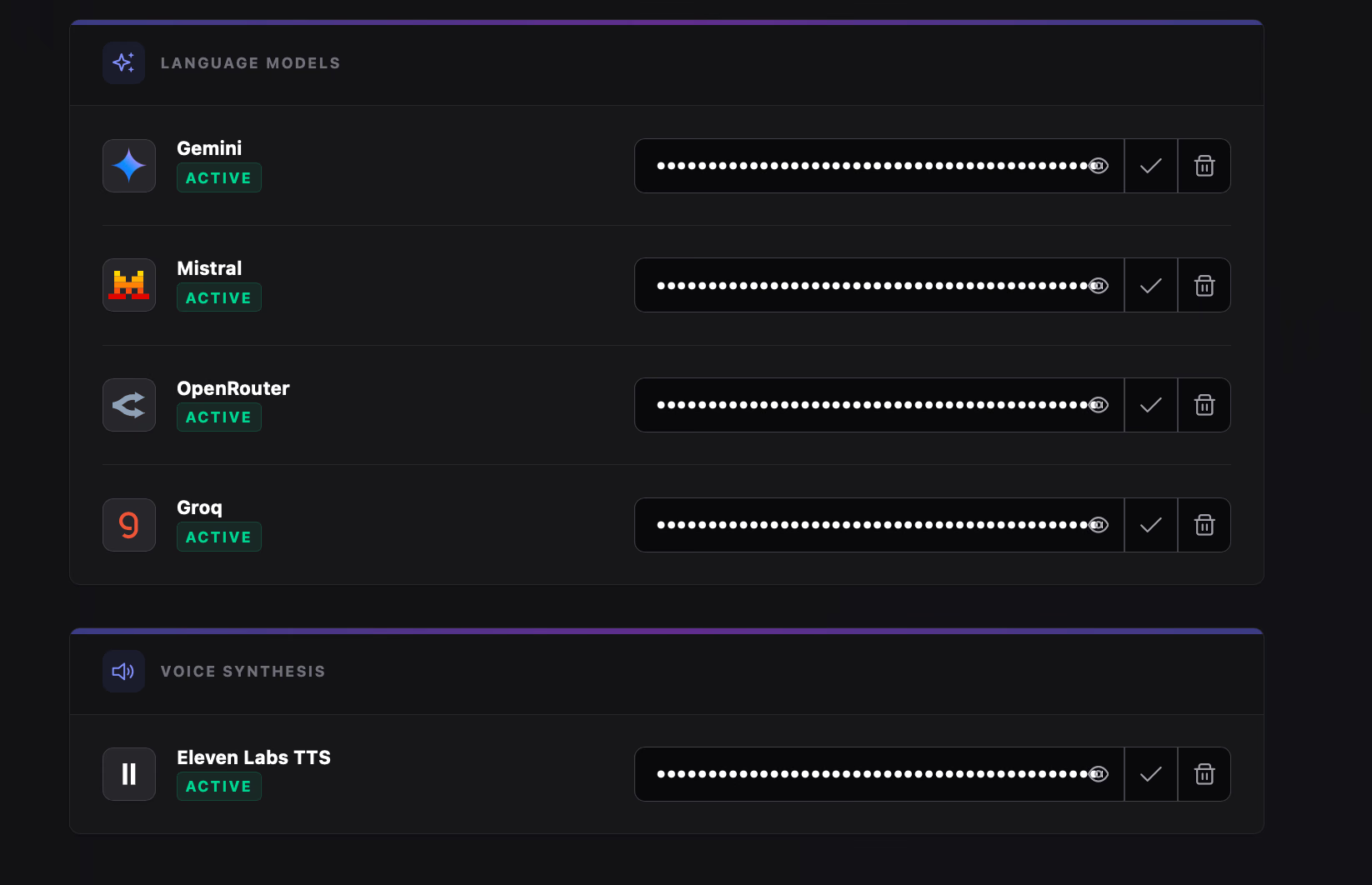
Cloud vs. Local Providers
Section titled “Cloud vs. Local Providers”You only need to add keys for the specific cloud services you plan to run:
Displays cloud LLM/VLM providers that require an API key—such as Mistral, Gemini, Groq, and OpenRouter.
Local inference engines like Ollama do not require an API key and will not appear on this screen.
Displays cloud text-to-speech providers that require an API key—such as ElevenLabs.
Built-in local voices (Aether / Kokoro, VoxCore / Supertonic-3) and Edge voices work without an API key and will not appear here.
Adding, Updating & Removing Keys
Section titled “Adding, Updating & Removing Keys”Each provider row displays a status badge (Active in green when a key is saved, or Missing Key in amber when empty), a masked input field, and action buttons:
- 1
Paste Your Provider Key Obtain an API key from your chosen provider’s dashboard and paste it into the Enter API Key field. Click the eye toggle inside the input if you want to verify what you pasted.
- 2
Save or Update Click the checkmark button (Update Key) and confirm in the dialog. The badge switches to Active.
- 3
Remove a Key Active rows display a trash button (Remove Key). Clicking it opens an irreversible confirmation prompt to clear the saved key and revert the status to Missing Key.
Where API Keys Are Checked
Section titled “Where API Keys Are Checked”Name Assignment uses an LLM key for dialogue name extraction and a vision-capable key for matching names to character face groups. Script Assignment also uses a vision-capable key to tag speakers and describe panels.
The Script tab checks for a valid key matching your selected LLM provider, and the Audio tab requires an ElevenLabs key when generating cloud ElevenLabs voices.